
Integrate Adobe Analytics with Optimizely Feature Experimentation
TL;DR
Optimizely Feature Experimentation does not include a built-in Adobe Analytics integration like Web Experimentation does. Instead, you use the SDK's notification listener system to capture experiment decisions and send them to Adobe Analytics programmatically. This approach gives you full control over what data is sent, when it is sent, and how it is formatted.
This guide covers both client-side (browser SDK) and server-side (Node SDK) implementations, optimal data formatting for Adobe Analytics, and how to build Analysis Workspace dashboards for feature flag experiments.
How the Integration Works
When the Optimizely SDK evaluates a feature flag using the decide() method, it fires a DECISION notification. You register a listener for this notification that captures the flag key, variation key, rule key, and enabled status, then sends this data to Adobe Analytics as an eVar or prop value.
flowchart TB
    A[SDK initialized] --> B["user.decide('flag_key')"]
    B --> C[DECISION notification fires]
    C --> D[Listener captures flag data]
    D --> E[Data sent to Adobe Analytics eVar]
    E --> F[Analysis Workspace reports]
The DECISION notification provides the following data through the decisionInfo object:
Field | Type | Description |
|---|---|---|
| string | The feature flag key (e.g., "checkout_redesign") |
| boolean | Whether the flag is enabled for this user |
| string | The assigned variation (e.g., "variation_a") |
| string | The rule that matched (experiment or rollout key) |
| boolean | Whether the decision dispatched a decision event (an impression) to logx.optimizely.com. True for experiment rules; false for targeted delivery (rollout) rules |
The decisionEventDispatched field is important: when false, it means the decision matched a targeted delivery (rollout) rule rather than an experiment rule, or DISABLE_DECISION_EVENT was used — so no impression was recorded in Optimizely. Your Adobe Analytics integration should still send data in this case, since Adobe Analytics needs the eVar set on every relevant pageview.
Setting Up the Notification Listener
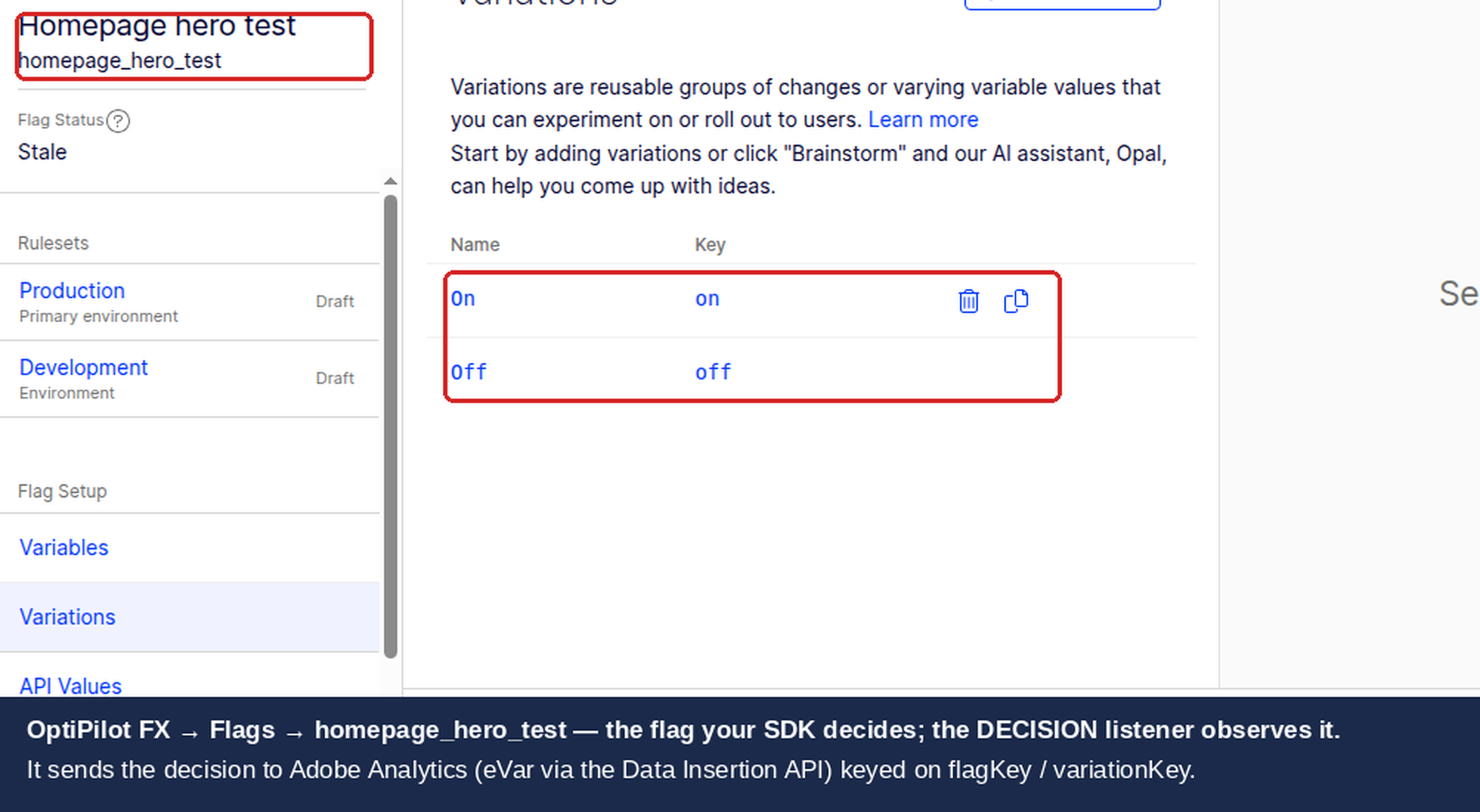
The notification listener is the core of this integration. It intercepts SDK decisions and forwards experiment data to Adobe Analytics.
JavaScript SDK (v6+)
For browser-side implementations using the Optimizely JavaScript SDK v6 or later:
import { createInstance, enums } from '@optimizely/optimizely-sdk';

const optimizely = createInstance({
  sdkKey: '<YOUR_SDK_KEY>',
});

// Register DECISION notification listener
optimizely.notificationCenter.addNotificationListener(
  enums.NOTIFICATION_TYPES.DECISION,
  ({ type, userId, attributes, decisionInfo }) => {
    // Only process flag decisions (not other decision types)
    if (type !== 'flag') return;

    const { flagKey, enabled, variationKey, ruleKey } = decisionInfo;

    // Format the decision string for Adobe Analytics
    const experimentString = enabled
      ? `${flagKey}(${ruleKey}):${variationKey}`
      : `${flagKey}(${ruleKey}):off`;

    // Send to Adobe Analytics
    sendToAdobeAnalytics(experimentString);
  }
);
Node SDK (Server-Side)
For server-side implementations using the Optimizely Node SDK:
const optimizelySdk = require('@optimizely/optimizely-sdk');

const optimizely = optimizelySdk.createInstance({
  sdkKey: '<YOUR_SDK_KEY>',
});

optimizely.notificationCenter.addNotificationListener(
  optimizelySdk.enums.NOTIFICATION_TYPES.DECISION,
  ({ type, userId, attributes, decisionInfo }) => {
    if (type !== 'flag') return;

    const { flagKey, enabled, variationKey, ruleKey } = decisionInfo;

    const experimentString = enabled
      ? `${flagKey}(${ruleKey}):${variationKey}`
      : `${flagKey}(${ruleKey}):off`;

    // Store for server-side forwarding or data layer injection
    storeDecisionForAnalytics(userId, experimentString);
  }
);
Optimal Data Format for Adobe Analytics
The format of the string you send to Adobe Analytics affects how easily you can build reports and segments in Analysis Workspace.
Recommended Format
Use flagKey(ruleKey):variationKey as the eVar value:
checkout_redesign(checkout_experiment):variation_a
This format lets you:
Filter by flag key to see all experiments for a feature
Filter by rule key to isolate specific experiments from rollouts
Break down by variation key to compare performance
When to Use eVars vs Props
Dimension Type | Use Case | Persistence | Best For |
|---|---|---|---|
eVar | Experiment assignment | Persists for visit/visitor | Conversion attribution across pages |
prop | Flag evaluation | Pageview only | Page-level analysis of flag status |
For most A/B testing use cases, eVars are the correct choice because you need experiment attribution to persist across the visit so conversions on downstream pages are attributed to the variation.
Use props when you need to analyze flag evaluations on a per-page basis, such as tracking how often a flag evaluates to enabled vs disabled across different pages.
Handling Enabled vs Disabled States
Always send data for both enabled and disabled states. This lets you compare conversion rates between users who see the feature and users who do not:
// Good: captures both states
const value = enabled
  ? `${flagKey}(${ruleKey}):${variationKey}`
  : `${flagKey}(${ruleKey}):off`;

// Bad: silently drops disabled users from reports
if (enabled) {
  sendToAdobe(`${flagKey}:${variationKey}`);
}
Client-Side Implementation (Browser SDK)
Here is a complete implementation for browser-based experiments that sends Optimizely Feature Experimentation decisions to Adobe Analytics.
import { createInstance, enums } from '@optimizely/optimizely-sdk';

// Initialize Optimizely SDK
const optimizely = createInstance({
  sdkKey: '<YOUR_SDK_KEY>',
});

/**
 * Send experiment data to Adobe Analytics
 * Waits for the Adobe Analytics object to be available
 */
function sendToAdobeAnalytics(experimentString) {
  var eVarNum = 'eVar10'; // Update to match your reserved eVar

  function tryAssign() {
    // Check if Adobe Analytics tracker is available
    if (typeof window.s !== 'undefined' && window.s) {
      window.s[eVarNum] = experimentString;
      // Fire a tracklink call to send the data
      window.s.tl(true, 'o', 'Optimizely FX Decision');
      return true;
    }
    return false;
  }

  // Try immediately
  if (tryAssign()) return;

  // Retry with polling if Adobe Analytics isn't ready yet
  var attempts = 0;
  var maxAttempts = 50; // 50 * 200ms = 10 seconds
  var interval = setInterval(function () {
    attempts++;
    if (tryAssign() || attempts >= maxAttempts) {
      clearInterval(interval);
      if (attempts >= maxAttempts) {
        console.warn('Adobe Analytics not available after 10 seconds');
      }
    }
  }, 200);
}

// Register the notification listener
optimizely.notificationCenter.addNotificationListener(
  enums.NOTIFICATION_TYPES.DECISION,
  ({ type, userId, attributes, decisionInfo }) => {
    if (type !== 'flag') return;

    const { flagKey, enabled, variationKey, ruleKey } = decisionInfo;
    const experimentString = enabled
      ? `${flagKey}(${ruleKey}):${variationKey}`
      : `${flagKey}(${ruleKey}):off`;

    sendToAdobeAnalytics(experimentString);
  }
);

// Make a decision (triggers the listener)
const user = optimizely.createUserContext('<USER_ID>', {
  plan_type: 'premium',
  country: 'US',
});

const decision = user.decide('checkout_redesign');
console.log('Variation:', decision.variationKey);
console.log('Enabled:', decision.enabled);
SPA Considerations
In single-page applications, feature flag decisions may happen on route changes after the initial page load. The notification listener handles this automatically since it fires on every decide() call. However, be aware that:
Each
decide()call on a new route triggers ans.tl()tracklink callIf your SPA makes many rapid
decide()calls during navigation, consider batching the Adobe Analytics callsVerify that the Adobe Analytics object persists across SPA route transitions (it should in most implementations)
Server-Side Implementation (Node SDK)
For server-side experiments, you cannot directly set Adobe Analytics eVars because the browser's s object is not available. Instead, use one of these approaches.
Option 1: Inject into the Data Layer
Pass the experiment data to the client via a data layer that your tag manager picks up:
const express = require('express');
const optimizelySdk = require('@optimizely/optimizely-sdk');

const app = express();

const optimizely = optimizelySdk.createInstance({
  sdkKey: '<YOUR_SDK_KEY>',
});

// Store decisions per request
const requestDecisions = new Map();

optimizely.notificationCenter.addNotificationListener(
  optimizelySdk.enums.NOTIFICATION_TYPES.DECISION,
  ({ type, userId, attributes, decisionInfo }) => {
    if (type !== 'flag') return;

    const { flagKey, enabled, variationKey, ruleKey } = decisionInfo;
    const experimentString = enabled
      ? `${flagKey}(${ruleKey}):${variationKey}`
      : `${flagKey}(${ruleKey}):off`;

    // Accumulate decisions for this user
    if (!requestDecisions.has(userId)) {
      requestDecisions.set(userId, []);
    }
    requestDecisions.get(userId).push(experimentString);
  }
);

app.get('/page', (req, res) => {
  const userId = req.cookies.userId || generateUserId();
  const user = optimizely.createUserContext(userId, {
    plan_type: req.cookies.planType || 'free',
  });

  const decision = user.decide('checkout_redesign');

  // Get accumulated decisions for this user
  const decisions = requestDecisions.get(userId) || [];
  requestDecisions.delete(userId); // Clean up

  res.render('page', {
    showRedesign: decision.enabled,
    // Inject into page as data layer for Adobe Analytics
    dataLayer: {
      optimizelyExperiments: decisions.join(' | ')
    }
  });
});
On the client side, the tag manager reads the data layer and sets the eVar:
// In your Adobe Launch rule or tag manager
if (window.dataLayer && window.dataLayer.optimizelyExperiments) {
  s.eVar10 = window.dataLayer.optimizelyExperiments;
}
Option 2: Adobe Data Insertion API
For fully server-side tracking without any client involvement, use Adobe's Data Insertion API to send data directly:
const https = require('https');

function sendToAdobeDataInsertionAPI(visitorId, experimentString) {
  const xml = `
    <?xml version="1.0" encoding="UTF-8"?>
    <request>
      <sc_xml_ver>1.0</sc_xml_ver>
      <visitor_id>${visitorId}</visitor_id>
      <eVar10>${experimentString}</eVar10>
      <page_url>https://yoursite.com/page</page_url>
      <report_suite>your_report_suite_id</report_suite>
    </request>
  `;

  const options = {
    hostname: 'your-tracking-server.sc.omtrdc.net',
    path: '/b/ss//6',
    method: 'POST',
    headers: {
      'Content-Type': 'application/xml',
      'Content-Length': Buffer.byteLength(xml),
    },
  };

  const req = https.request(options);
  req.write(xml);
  req.end();
}
The Data Insertion API is best suited for server-side experiments where no browser interaction occurs, such as API-driven personalization or backend A/B tests.
Batch Processing Considerations
If your server handles high request volumes, avoid making an Adobe API call for every single decision. Instead, batch decisions and send them in bulk:
Accumulate decisions in a buffer with a configurable flush interval (e.g., every 30 seconds)
Set a maximum buffer size to prevent memory issues (e.g., 1000 decisions)
Include error handling and retry logic for failed API calls
Log failed batches to a dead-letter queue for later processing
Building an A/B Testing Dashboard in Analysis Workspace
The Analysis Workspace dashboard for Feature Experimentation follows the same principles as Web Experimentation, adapted for feature flag data.
flowchart TD
    A[Feature Flag Dashboard] --> B[Flag Performance Table]
    A --> C[Cumulative Uplift Chart]
    A --> D[Rollout Monitoring Panel]
    B --> E[Flag key + variation breakdown]
    B --> F[Conversion metrics per variation]
    C --> G[Control vs variation CVR over time]
    D --> H[Enabled vs disabled ratio over time]
    D --> I[Error rates by flag state]
Freeform Table Setup
Drag your Optimizely eVar into a freeform table.
The values display as
flagKey(ruleKey):variationKeystrings.Add metrics: Visits, Orders, Revenue, Custom Events (any conversion events relevant to your experiment).
Use the search/filter to isolate a specific flag key.
Cumulative Uplift and Significance
Create the same calculated metrics as described in the Web Experimentation integration:
Cumulative CVR:
Cumulative(Orders) / Cumulative(Visits)broken down by variation segmentStatistical significance: Z-score based on proportion comparison between control and variation
Monitoring Feature Rollouts
Feature flags are not limited to experiments. For gradual rollouts, build a monitoring panel:
Create a segment for
eVar contains ":off"(disabled users) and another for users with any variation key (enabled users).Plot the enabled/disabled ratio over time to verify the rollout percentage matches your configuration.
Add error rate or performance metrics alongside the rollout chart to catch regressions early.
Troubleshooting
Listener Not Firing
If your notification listener callback never executes:
SDK not initialized: Ensure
createInstance()has completed and the datafile has been fetched before callingdecide(). Use theonReady()promise to confirm.Listener registered too late: Register the notification listener immediately after creating the Optimizely instance, before any
decide()calls.Wrong notification type: Verify you are listening for
enums.NOTIFICATION_TYPES.DECISION, notTRACKor another type.
// Correct initialization order
const optimizely = createInstance({ sdkKey: '<YOUR_SDK_KEY>' });

// Register listener BEFORE any decide() calls
optimizely.notificationCenter.addNotificationListener(
  enums.NOTIFICATION_TYPES.DECISION,
  myListenerCallback
);

// Now safe to make decisions
optimizely.onReady().then(() => {
  const user = optimizely.createUserContext('user123');
  const decision = user.decide('my_flag');
});
Data Not Appearing in Adobe Analytics
If the listener fires but data does not appear in Adobe Analytics reports:
Adobe object not available: The browser's
sobject may not be loaded when the SDK decision fires. Use the polling/retry pattern described in the client-side implementation section.eVar not configured: Verify the eVar number in your code matches the one configured in Adobe Report Suite Manager.
Report suite processing delay: Adobe Analytics can take 1-2 hours to process incoming data. Check the Real-Time reports first to confirm data is arriving.
Discrepancies Between Platforms
Common causes of data differences between Optimizely Feature Experimentation results and Adobe Analytics:
Multiple decide() calls: If
decide()is called multiple times for the same user (e.g., on each page in an SPA), Adobe Analytics may count more events than Optimizely does (Optimizely deduplicates).decisionEventDispatched: false: When this field is
false, Optimizely did not send an event to its own analytics, but your listener still fires. This can cause Adobe Analytics to have higher counts for experiment exposure.Server-side vs client-side timing: If experiments run server-side but Adobe Analytics tracking is client-side, page abandonment between server response and client tracking causes data loss.
decisionEventDispatched: false
This occurs when:
The decide() call used the DISABLE_DECISION_EVENT option, so no decision event was sent
The SDK configuration has
sendFlagDecisionsset tofalseThe decision is for a rollout rule rather than an experiment rule
Your Adobe Analytics listener should still send data when decisionEventDispatched is false because Adobe Analytics needs the eVar set on each relevant pageview for accurate attribution.
Summary
Integrating Adobe Analytics with Optimizely Feature Experimentation requires a custom implementation using notification listeners, but this provides full control over data format and timing.
flowchart TD
    A[Feature Experimentation + Adobe Analytics] --> B{Where do experiments run?}
    B -->|Browser only| C[Client-side: SDK listener + s.tl]
    B -->|Server only| D{Need client-side analytics?}
    B -->|Both| E[Hybrid: server decisions + data layer]
    D -->|Yes| F[Data layer injection via tag manager]
    D -->|No| G[Adobe Data Insertion API]
    C --> H[Simplest implementation]
    F --> I[Most common for SSR apps]
    G --> J[Best for API-only backends]
For browser-based experiments, the client-side SDK with a DECISION notification listener is the most straightforward approach. For server-side experiments, inject decisions into a data layer for your tag manager to pick up, or use the Adobe Data Insertion API for fully server-side tracking.
Related guides
Also available for
Related articles
Subscribe
Practical Optimizely tips, monthly. No fluff.