
Integrate mParticle with Optimizely Web Experimentation
TL;DR
mParticle is a Customer Data Platform (CDP) that collects, unifies, and forwards customer event data across your marketing and analytics stack. Integrating mParticle with Optimizely Web Experimentation creates a two-way data bridge: mParticle forwards conversion events to Optimizely so they appear in your experiment results, and Optimizely sends experiment decisions back to mParticle so you can build audiences, trigger downstream workflows, and analyze experiment participation alongside all other customer data.
This guide covers both directions of the integration. You will configure the mParticle output connection to forward events to Optimizely, then build a Custom Analytics Integration in Optimizely to send bucketing decisions back to mParticle. The result is a unified view of experiment performance across your entire data stack.
How the Integration Works
The integration operates in two directions. mParticle forwards tracked events (custom events, commerce events, page views) to Optimizely through the window.optimizely queue. In the other direction, Optimizely sends experiment decisions to mParticle through a track_layer_decision callback that calls mParticle.logEvent().
flowchart TB
    subgraph MP["mParticle"]
        A["mParticle Web SDK"] --> B["Event Forwarding"]
    end
    subgraph OP["Optimizely"]
        C["window.optimizely queue"] --> D["Experiment Results"]
        E["Bucketing Decision"] --> F["track_layer_decision callback"]
    end
    B -->|"Custom/Commerce/PageView events"| C
    F -->|"mParticle.logEvent"| G["mParticle Live Stream"]
    G --> H["Audiences, Downstream Tools"]
Direction | Data Sent | Mechanism | Use Case |
|---|---|---|---|
mParticle → Optimizely | Custom events, commerce events, page views | mParticle JS kit pushes to | Track conversions in Optimizely experiment results |
Optimizely → mParticle | Experiment decisions (campaign, experiment, variation IDs) |
| Build audiences by variation, forward to downstream tools |
The mParticle JavaScript kit detects the Optimizely Web snippet by checking for the window.optimizely object. When present, the kit pushes events directly into the Optimizely event queue. mParticle can also auto-load the Optimizely snippet if it is not already on the page, though most teams prefer to load the snippet manually to control page flicker for UI experiments.
Prerequisites
Before starting the integration, confirm the following:
mParticle Web SDK deployed on your site with event tracking active.
Optimizely Web Experimentation snippet installed on the same pages. The snippet must be present before mParticle attempts to forward events.
Admin access to both the mParticle dashboard (Connections configuration) and the Optimizely project (Settings > Integrations).
Consistent user ID strategy across both platforms. Decide in advance which identity type (Customer ID, email hash, or Device Application Stamp) you will use for reconciliation.
Step 1: Configure the mParticle Output Connection
The mParticle output connection tells the mParticle SDK to forward events to Optimizely. This is configured entirely in the mParticle dashboard.
Log into your mParticle workspace.
Navigate to Connections > Connect Output.
Search for and select Optimizely.
Enter your Optimizely Project ID. You can find this in the Optimizely dashboard under Settings > Project, or by running the following in the browser console on a page with the Optimizely snippet:
// Find your Optimizely Project ID
var projectId = window.optimizely && window.optimizely.get("data").projectId;
console.log("Optimizely Project ID:", projectId);
Configure the User ID mapping. This dropdown determines which mParticle identity is sent as the Optimizely user identifier.
Save the connection and set the status to Active.
The following identity types are available for user ID mapping:
Identity Type | mParticle Source | Best For | Notes |
|---|---|---|---|
Customer ID |
| Logged-in users with stable IDs | Most accurate cross-session tracking |
User's email identity | Sites with email-based auth | Hash before sending to avoid PII in Optimizely | |
MPID | mParticle ID (auto-generated) | All users | Unique per mParticle profile, may change on identity resolution |
Device Application Stamp |
| Anonymous users | Default fallback when configured ID is not available |
When the configured identity type is not available for a given user (for example, a Customer ID for an anonymous visitor), mParticle falls back to the Device Application Stamp. This ensures events are always forwarded, even for users who have not yet identified themselves.
Step 2: Event Forwarding from mParticle to Optimizely
Once the output connection is active, mParticle automatically forwards tracked events to Optimizely. The mParticle JavaScript kit detects window.optimizely on the page and pushes events into the Optimizely queue.
If your Optimizely snippet is already on the page, mParticle detects it and uses the existing instance. If the snippet is not present, mParticle can auto-load it based on the Project ID in the connection settings. For UI experiments where page flicker is a concern, load the Optimizely snippet manually in the <head> tag rather than relying on mParticle auto-loading.
A standard mParticle event that gets forwarded to Optimizely:
// Track a custom event in mParticle
// This event is automatically forwarded to Optimizely
mParticle.logEvent(
  "Button Clicked",
  mParticle.EventType.Navigation,
  {
    button_name: "Add to Cart",
    page: "product_detail",
    category: "electronics"
  }
);
mParticle maps its event types to Optimizely event types as follows:
mParticle Event Type | Optimizely Event Type | Notes |
|---|---|---|
Custom Event | Custom event | Event name and attributes forwarded directly |
Commerce Event (Purchase) | Revenue event | Revenue auto-multiplied by 100 (dollars → cents) |
Page View | Page view event | Page URL and title forwarded |
Revenue handling requires special attention. mParticle Commerce Events use dollar amounts, but Optimizely expects revenue in cents. The mParticle kit handles this conversion automatically by multiplying the revenue value by 100.
// Commerce event with revenue
// mParticle sends $49.99 → Optimizely receives 4999 (cents)
var product = mParticle.eCommerce.createProduct(
  "Premium Plan",         // name
  "SKU-001",              // sku
  49.99,                  // price in dollars
  1                       // quantity
);

mParticle.eCommerce.logProductAction(
  mParticle.ProductActionType.Purchase,
  [product],
  { coupon_code: "SAVE10" },  // custom attributes
  {
    Id: "order-12345",
    Revenue: 49.99,            // dollars — auto-converted to 4999 cents
    Tax: 4.50
  }
);
Step 3: Send Experiment Decisions to mParticle
The reverse direction — sending Optimizely experiment decisions to mParticle — uses a Custom Analytics Integration in Optimizely. This creates a track_layer_decision callback that fires each time a visitor is bucketed into an experiment.
Create the JSON Integration
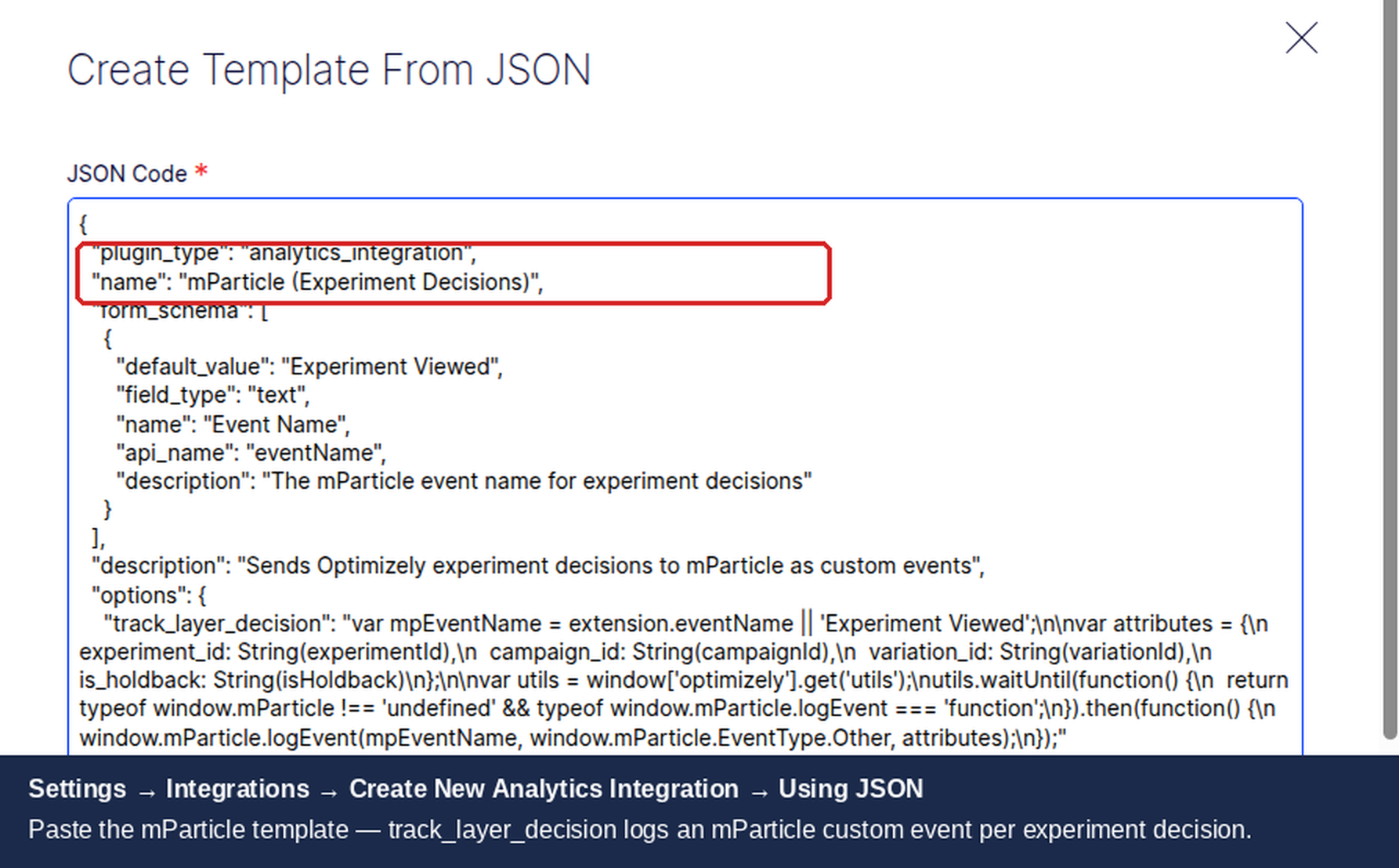
In your Optimizely project, go to Settings > Integrations.
Click Create Analytics Integration > Using JSON.
Paste the following configuration. The
options.track_layer_decisionfield includes the callback code directly, so no separate code step is needed:
{
  "plugin_type": "analytics_integration",
  "name": "mParticle (Experiment Decisions)",
  "form_schema": [
    {
      "default_value": "Experiment Viewed",
      "field_type": "text",
      "name": "Event Name",
      "api_name": "eventName",
      "description": "The mParticle event name for experiment decisions"
    }
  ],
  "description": "Sends Optimizely experiment decisions to mParticle as custom events",
  "options": {
    "track_layer_decision": "var mpEventName = extension.eventName || \"Experiment Viewed\";\n\nvar attributes = {\n  experiment_id: String(experimentId),\n  campaign_id: String(campaignId),\n  variation_id: String(variationId),\n  is_holdback: String(isHoldback)\n};\n\nif (campaign && campaign.name) {\n  attributes.campaign_name = campaign.name;\n}\n\nvar utils = window['optimizely'].get('utils');\nutils.waitUntil(function() {\n  return typeof window.mParticle !== 'undefined' && typeof window.mParticle.logEvent === 'function';\n}).then(function() {\n  window.mParticle.logEvent(\n    mpEventName,\n    window.mParticle.EventType.Other,\n    attributes\n  );\n});\n"
  }
}
Click Save Integration.
The form_schema creates a configurable event name field in the Optimizely UI. The default is "Experiment Viewed", but you can customize it per experiment if needed.
The options.track_layer_decision callback fires each time Optimizely makes a bucketing decision. It reads the configurable event name from extension.eventName, builds an attributes object with the experiment and variation IDs, and sends the event to mParticle via mParticle.logEvent(). The callback receives these variables:
Variable | Type | Description |
|---|---|---|
| string | The campaign (layer) ID in Optimizely |
| string | The experiment ID within the campaign |
| string | The assigned variation ID |
| boolean | Whether the visitor is in the holdback group |
| object | Full campaign object with name and policy |
| object | Custom settings from the form schema (contains |
Enable the Integration
After saving the integration:
Toggle the integration to Enabled in Settings > Integrations.
Check Enable for all new experiments to apply automatically.
For existing experiments, go to Manage Campaign > Integrations and enable the mParticle integration.
Once enabled, every bucketing decision sends an "Experiment Viewed" event to mParticle with experiment and variation attributes.
Step 4: Configure User ID Mapping
Consistent user IDs across both platforms is critical for accurate analysis. If mParticle and Optimizely use different identifiers for the same user, experiment participation data will not match conversion data.
Access the current mParticle user identity to verify the mapping:
// Check which identity mParticle is using for Optimizely
var currentUser = mParticle.Identity.getCurrentUser();
var identities = currentUser.getUserIdentities().userIdentities;

console.log("Customer ID:", identities.customerid);
console.log("Email:", identities.email);
console.log("MPID:", currentUser.getMPID());
console.log("Device ID:", mParticle.getDeviceId());

// Check what Optimizely sees as the user ID
var optimizelyState = window.optimizely && window.optimizely.get("state");
if (optimizelyState) {
  console.log("Optimizely visitor ID:", optimizelyState.getVisitorId());
}
The following table compares identity strategies:
Strategy | Pros | Cons | Recommended For |
|---|---|---|---|
Customer ID | Stable across sessions, matches CRM | Only available for logged-in users | B2B SaaS, logged-in experiences |
Email (hashed) | Available at signup, familiar identifier | Requires hashing to avoid PII in Optimizely | E-commerce with account creation |
MPID | Always available, auto-generated | May change during identity resolution events | General purpose when no stable ID exists |
Device Application Stamp | Always available, default fallback | Device-scoped, not cross-device | Anonymous visitors, fallback |
For most implementations, configure Customer ID as the primary identity with Device Application Stamp as the fallback. This ensures logged-in users are tracked consistently while anonymous visitors still have events forwarded.
A/A Testing Validation
Before relying on the integration for production experiments, run an A/A test to validate that data flows correctly in both directions and no systematic bias exists.
A/A Test Methodology
Create a new A/B test in Optimizely with two identical variations (no code changes).
Set traffic allocation to 50/50.
Enable the mParticle integration for this experiment.
Run the test for at least 7 days or until you reach 1,000 visitors per variation.
Validate both directions:
mParticle → Optimizely: Check that conversion events appear in the Optimizely Results page with roughly equal counts per variation.
Optimizely → mParticle: Check that "Experiment Viewed" events appear in mParticle Live Stream with correct experiment and variation attributes.
Both variations should show statistically similar behavior. Differences greater than 5% on any metric suggest a timing or ID mapping issue.
flowchart TD
    A["Create A/A test in Optimizely"] --> B["Enable mParticle integration"]
    B --> C["Run for 7+ days / 1000+ visitors per variation"]
    C --> D{"Events flowing in both directions?"}
    D -->|Yes| E{"Metrics within 5% between variations?"}
    E -->|Yes| F["Integration validated — proceed with real experiments"]
    E -->|No| G["Check user ID mapping and event timing"]
    D -->|No| H["Check connection settings and snippet loading"]
    G --> I["Re-run A/A test"]
    H --> I
Validating the Integration
After setting up both directions of the integration, verify that data flows correctly.
mParticle → Optimizely Direction
Check the Optimizely Results page for your active experiments. Forwarded events from mParticle should appear as conversions. If you have a test experiment running, trigger a few events through mParticle and verify they appear in Optimizely within 1-2 minutes.
Optimizely → mParticle Direction
Check the mParticle Live Stream dashboard. When a visitor is bucketed into an experiment, you should see an "Experiment Viewed" event (or your custom event name) with the experiment and variation attributes. Expect a 1-5 minute delay between the bucketing decision and the event appearing in Live Stream.
Console Verification
Open the browser console on a page with an active experiment and run the following diagnostic:
// Verify mParticle SDK is loaded
console.log("mParticle loaded:", typeof window.mParticle !== "undefined");
console.log("mParticle version:", window.mParticle && window.mParticle.getVersion());

// Verify Optimizely snippet is loaded
console.log("Optimizely loaded:", typeof window.optimizely !== "undefined");

// Check active experiments
var state = window.optimizely && window.optimizely.get("state");
if (state) {
  var campaigns = state.getCampaignStates({ isActive: true });
  for (var id in campaigns) {
    var c = campaigns[id];
    console.log("Campaign " + id + ":", {
      experimentId: c.experiment && c.experiment.id,
      variationId: c.variation && c.variation.id,
      variationName: c.variation && c.variation.name
    });
  }
} else {
  console.log("No active Optimizely experiments");
}

// Check mParticle current user
var user = mParticle.Identity.getCurrentUser();
if (user) {
  console.log("mParticle MPID:", user.getMPID());
  console.log("mParticle identities:", user.getUserIdentities().userIdentities);
}
This confirms that both SDKs are loaded, the visitor is bucketed into experiments, and user identities are available for mapping.
Analyzing Experiments in mParticle
Once experiment decisions flow into mParticle, you can use mParticle's audience and forwarding capabilities to analyze experiments across your entire data stack.
Creating Audiences by Variation
Build mParticle audiences segmented by experiment participation:
In the mParticle dashboard, go to Audiences.
Create a new audience with an event-based rule.
Set the event name to "Experiment Viewed" (or your custom name).
Add attribute filters for
experiment_idandvariation_idto target a specific variation.Name the audience descriptively (e.g., "Homepage Hero - Variation A").
These audiences update in real time as new experiment decisions arrive, making them available for targeting in downstream tools.
Forwarding to Downstream Tools
mParticle audiences and experiment events can be forwarded to any connected output:
Amplitude or Mixpanel: Analyze experiment impact on product metrics like retention, engagement, and feature adoption.
BigQuery or Snowflake: Build custom experiment dashboards and run cross-experiment analysis at scale.
Braze or Iterable: Trigger personalized messaging based on which experiment variation a user saw.
Facebook or Google Ads: Suppress or target users based on experiment participation for consistent ad experiences.
Each downstream tool receives the full experiment event with all attributes, enabling variation-level segmentation without additional integration work.
Revenue Attribution
When mParticle forwards Commerce Events to Optimizely, revenue is automatically converted from dollars to cents (multiplied by 100). When analyzing revenue in mParticle, remember that mParticle stores the original dollar amount while Optimizely stores the cent-converted value. Always check which platform's revenue figure you are using when comparing cross-platform reports.
Troubleshooting
Events Not Reaching Optimizely
If mParticle events do not appear in the Optimizely Results page:
User ID mismatch: The user identity sent by mParticle must match what Optimizely expects. Check the connection setting and verify the identity type is available for the current user.
Event forwarding not enabled: Confirm the mParticle output connection is set to Active and the event types you need (Custom, Commerce, PageView) are enabled in the connection settings.
Optimizely snippet not loaded: mParticle needs
window.optimizelyto be available. If you disabled auto-loading, ensure the snippet is loaded before mParticle initializes.Revenue off by 100x: If revenue numbers are unexpectedly large in Optimizely, you may be sending values that are already in cents. mParticle automatically multiplies by 100, so send dollar amounts in Commerce Events.
Experiment Decisions Not Reaching mParticle
If "Experiment Viewed" events do not appear in mParticle Live Stream:
mParticle SDK not loaded: The
track_layer_decisioncallback fires when Optimizely makes a bucketing decision. Ifwindow.mParticleis not yet available at that moment, thelogEventcall silently fails. Ensure the mParticle SDK loads before or alongside the Optimizely snippet.Callback syntax error: A JavaScript error in the
track_layer_decisioncode prevents execution. Check the browser console for errors related to the integration.Integration not enabled: The Custom Analytics Integration must be toggled on in Settings > Integrations AND enabled for the specific experiment in Manage Campaign > Integrations.
Visitor not bucketed: The callback only fires when Optimizely makes a bucketing decision. If the visitor does not meet audience conditions or is excluded by traffic allocation, no event is sent.
Duplicate Snippet Loading
mParticle auto-detects window.optimizely to determine whether the Optimizely snippet is already loaded. If both mParticle and your site load the snippet independently, you may see duplicate event tracking or flickering.
To prevent this:
If you load the Optimizely snippet manually (recommended for UI experiments), configure the mParticle connection to skip auto-loading. Check the "Use existing snippet" option in the connection settings.
If you rely on mParticle to load the snippet, remove any manual snippet tags from your page.
Verify there is only one Optimizely instance by running:
// Check for duplicate Optimizely instances
console.log("window.optimizely exists:", !!window.optimizely);
console.log("Optimizely revision:", window.optimizely && window.optimizely.get("data").revision);
If you see the snippet loaded twice, page events may be counted twice in Optimizely results.
Revenue Discrepancies
Revenue differences between mParticle and Optimizely are almost always caused by the automatic dollar-to-cent conversion:
mParticle Commerce Events: Revenue is in dollars (e.g.,
49.99).Optimizely receives: Revenue in cents (e.g.,
4999) after mParticle auto-multiplies by 100.Custom mParticle events with revenue: If you send revenue as a custom event attribute (not a Commerce Event), the auto-conversion does not apply. Use Commerce Events for revenue tracking to ensure consistent conversion.
Compare revenue by dividing Optimizely's reported revenue by 100 to get back to the dollar amount that mParticle originally sent.
Related guides
Also available for
Related articles
Subscribe
Practical Optimizely tips, monthly. No fluff.