
Optimizely Segment Integration Guide
TL;DR
Optimizely Feature Experimentation uses SDK-based feature flags rather than a client-side snippet. Integrating with Segment sends experiment decision data into your analytics infrastructure, where it can be forwarded to warehouses, analytics tools, and engagement platforms through Segment's destination catalog.
Unlike Web Experimentation, which uses a JSON analytics plugin with track_layer_decision callbacks, Feature Experimentation uses SDK notification listeners. You register a DECISION notification listener on the Optimizely SDK instance that captures flag keys, variation keys, and experiment details, then sends the data to Segment via analytics.track().
This guide covers JavaScript/Node.js and Python implementations, Segment dashboard configuration, and common integration pitfalls.
How the Integration Works
When the Optimizely Feature Experimentation SDK evaluates a feature flag using the decide() method, it fires a DECISION notification. You register a listener for this notification that captures the decision data and sends it to Segment as an "Experiment Viewed" track call. Segment then routes this event to all connected destinations — warehouses, analytics tools, engagement platforms — with the experiment context attached.
sequenceDiagram
    participant App as Application Code
    participant SDK as Optimizely SDK
    participant Listener as DECISION Listener
    participant Seg as Segment SDK
    participant Dest as Downstream Destinations

    App->>SDK: user.decide("flag_key")
    SDK->>SDK: Evaluate flag rules
    SDK->>Listener: DECISION notification
    Listener->>Listener: Extract decision data
    Listener->>Listener: Filter for experiment types
    Listener->>Seg: analytics.track("Experiment Viewed", properties)
    Seg->>Dest: Route to warehouses, analytics, marketing tools
Decision Notification Data
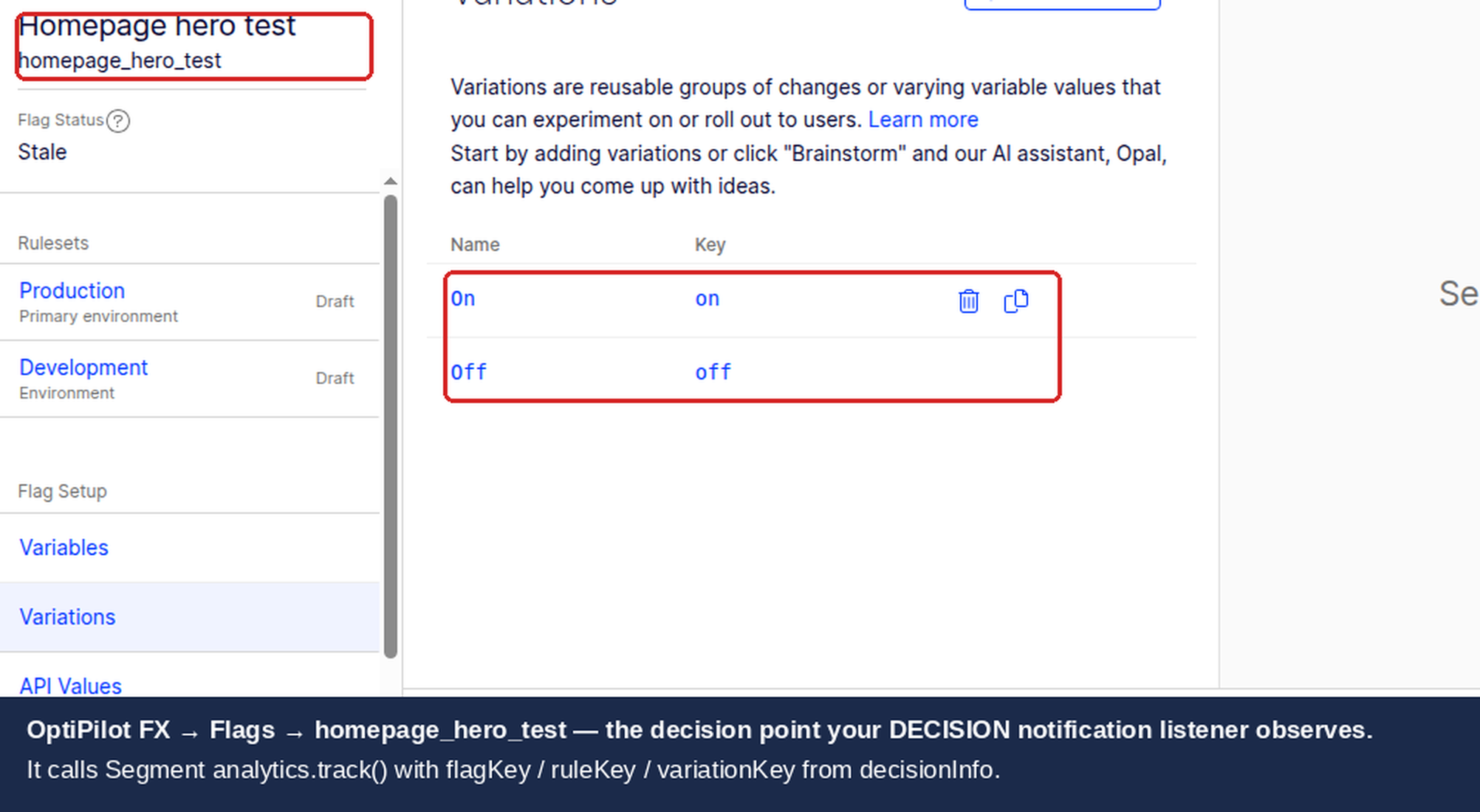
The DECISION notification provides the following data through the callback arguments:
Field | Type | Description |
|---|---|---|
| string | The decision type: |
| string | The user ID passed to the SDK |
| object | User attributes passed to the SDK |
| string | The feature flag key (e.g., |
| boolean | Whether the flag is enabled for this user |
| string | The assigned variation (e.g., |
| string | The rule that matched (experiment key or rollout key) |
| boolean | Whether Optimizely sent an event to its own analytics |
The decisionInfo object also includes variables (the flag variable values for this variation) and reasons (if the SDK is configured with decision logging enabled).
Platform Support
Platform | Optimizely SDK | Segment SDK | Integration Method |
|---|---|---|---|
Browser (JavaScript) |
|
| Client-side listener |
Node.js |
|
| Server-side listener |
Python |
|
| Server-side listener |
Java |
|
| Server-side listener |
Go |
|
| Server-side listener |
Ruby |
|
| Server-side listener |
Server-side SDKs send events to Segment in cloud mode, which means events go directly to Segment's API without a browser. This is the recommended approach for backend services, API servers, and microservices.
Prerequisites
Before starting the integration:
Optimizely Feature Experimentation SDK installed and initialized for your platform (JavaScript SDK v5+, Node.js, Python, or other supported SDK).
Segment SDK installed and initialized for your platform (
analytics.jsfor browser,analytics-nodefor Node.js,analytics-pythonfor Python).A feature flag with an experiment rule (A/B test or feature test) configured in your Optimizely project.
A Segment source created in your workspace for the application sending events.
Consistent user ID strategy across both SDKs. The
userIdpassed to the Optimizely SDK should match theuserIdused inanalytics.identify()andanalytics.track()calls.
JavaScript / Node.js Implementation
The JavaScript implementation works for both browser and Node.js environments. The only difference is the Segment SDK import — analytics.js for browser, analytics-node for server.
Full Implementation
import { createInstance, enums } from "@optimizely/optimizely-sdk";
import Analytics from "analytics-node";

// Initialize Segment (Node.js)
// For browser: window.analytics is available after analytics.js loads
const analytics = new Analytics("YOUR_SEGMENT_WRITE_KEY");

// Initialize Optimizely SDK
const optimizely = createInstance({
  sdkKey: "YOUR_SDK_KEY",
});

// Wait for SDK to be ready
optimizely.onReady().then(() => {
  // Register the DECISION notification listener BEFORE any decide() calls
  optimizely.notificationCenter.addNotificationListener(
    enums.NOTIFICATION_TYPES.DECISION,
    (notification) => {
      const { type, userId, attributes, decisionInfo } = notification;

      // Only process flag decisions (not other decision types)
      if (type !== "flag") return;

      const { flagKey, variationKey, enabled, ruleKey } = decisionInfo;

      // Only send events for experiment rules, not rollouts
      // Rollout rules have ruleKey but no experiment assignment
      if (!ruleKey || !variationKey) return;

      // Build properties for Segment
      const properties = {
        flagKey: flagKey,
        variationKey: variationKey,
        enabled: enabled,
        ruleKey: ruleKey,
        optimizelyUserId: userId,
      };

      // Include user attributes if present
      if (attributes && Object.keys(attributes).length > 0) {
        properties.userAttributes = attributes;
      }

      // Send to Segment
      analytics.track({
        userId: userId,
        event: "Experiment Viewed",
        properties: properties,
      });
    }
  );

  // Now make flag decisions — the listener fires automatically
  const user = optimizely.createUserContext("user-123", {
    plan: "premium",
    country: "US",
  });

  const decision = user.decide("checkout_redesign");
  console.log("Flag enabled:", decision.enabled);
  console.log("Variation:", decision.variationKey);
});
Browser-Specific Implementation
For browser environments using analytics.js, replace the Segment initialization with the global window.analytics object:
import { createInstance, enums } from "@optimizely/optimizely-sdk";

const optimizely = createInstance({
  sdkKey: "YOUR_SDK_KEY",
});

optimizely.onReady().then(() => {
  optimizely.notificationCenter.addNotificationListener(
    enums.NOTIFICATION_TYPES.DECISION,
    (notification) => {
      const { type, userId, decisionInfo } = notification;
      if (type !== "flag") return;

      const { flagKey, variationKey, enabled, ruleKey } = decisionInfo;
      if (!ruleKey || !variationKey) return;

      // Use window.analytics (Segment analytics.js)
      if (window.analytics && typeof window.analytics.track === "function") {
        window.analytics.track("Experiment Viewed", {
          flagKey: flagKey,
          variationKey: variationKey,
          enabled: enabled,
          ruleKey: ruleKey,
        });
      }
    }
  );
});
Filtering by Decision Type
Not every DECISION notification corresponds to an experiment. Optimizely fires DECISION notifications for rollouts (gradual feature releases) as well as A/B tests. If you only want to track experiment decisions in Segment, filter by the rule type:
optimizely.notificationCenter.addNotificationListener(
  enums.NOTIFICATION_TYPES.DECISION,
  (notification) => {
    const { type, userId, decisionInfo } = notification;
    if (type !== "flag") return;

    const { flagKey, variationKey, ruleKey, enabled } = decisionInfo;

    // Skip if no rule matched (flag evaluated to default)
    if (!ruleKey) return;

    // Skip if no variation assigned (rollout with no experiment)
    if (!variationKey) return;

    // Send to Segment
    analytics.track({
      userId: userId,
      event: "Experiment Viewed",
      properties: {
        flagKey: flagKey,
        variationKey: variationKey,
        enabled: enabled,
        ruleKey: ruleKey,
      },
    });
  }
);
The ruleKey corresponds to the experiment key or rollout key in your Optimizely project. You can use this to filter for specific experiments if needed.
Python Implementation
The Python SDK follows the same pattern: register a notification listener, extract decision data, and send to Segment.
import os
import optimizely
from optimizely import enums
import analytics

# Initialize Segment (legacy analytics-python 1.x — `import analytics`).
# If you use the current segment-analytics-python package, replace the import
# with: from segment import analytics
analytics.write_key = "YOUR_SEGMENT_WRITE_KEY"

# Initialize Optimizely SDK
optimizely_client = optimizely.Optimizely(sdk_key=os.environ["OPTIMIZELY_SDK_KEY"])

# The Python SDK calls DECISION listeners with four positional args
# (decision_type, user_id, attributes, decision_info) — encoded in
# enums.NotificationTypes.DECISION as
# "DECISION:type, user_id, attributes, decision_info". A single-arg
# (notification_type, args) signature receives the wrong values and silently
# returns when args.get("decision_info") is None. decision_info keys are
# snake_case in the Python SDK (flag_key, variation_key, rule_key, enabled).
def on_decision(decision_type, user_id, attributes, decision_info):
    # Only process flag decisions (not other decision types)
    if decision_type != "flag":
        return

    flag_key = decision_info.get("flag_key")
    variation_key = decision_info.get("variation_key")
    enabled = decision_info.get("enabled")
    rule_key = decision_info.get("rule_key")

    # Skip if no experiment rule matched (rollouts without an experiment
    # assignment have a rule_key but no variation_key)
    if not rule_key or not variation_key:
        return

    # Send to Segment. Property names match the JS examples above
    # (camelCase) so downstream destinations see one schema regardless of
    # which SDK fired the event.
    analytics.track(
        user_id=user_id,
        event="Experiment Viewed",
        properties={
            "flagKey": flag_key,
            "variationKey": variation_key,
            "enabled": enabled,
            "ruleKey": rule_key,
        },
    )

# Register the listener BEFORE any decide() calls
notification_id = optimizely_client.notification_center.add_notification_listener(
    enums.NotificationTypes.DECISION,
    on_decision,
)

# Make flag decisions — the listener fires automatically
user = optimizely_client.create_user_context("user-123", {"plan": "premium"})
decision = user.decide("checkout_redesign")

print(f"Flag enabled: {decision.enabled}")
print(f"Variation: {decision.variation_key}")

# Flush Segment events before process exits
analytics.flush()
Python Batch Considerations
For high-throughput Python services, the Segment analytics-python library batches events by default (sends every 100 events or every 0.5 seconds). If your service processes many flag decisions per second, tune the batch settings:
import analytics

analytics.write_key = "YOUR_SEGMENT_WRITE_KEY"
analytics.max_queue_size = 10000  # Increase queue size for high throughput
analytics.send = True             # Ensure sending is enabled
analytics.debug = False           # Disable debug logging in production
Always call analytics.flush() before process shutdown to ensure all queued events are sent.
Segment Dashboard Configuration
Choosing the Right Destination
Segment offers two Optimizely destinations. Use the correct one:
Destination | Use For | Mode |
|---|---|---|
Optimizely Web | Web Experimentation (client-side snippet) | Device mode (browser) |
Optimizely Full Stack | Feature Experimentation (SDK-based) | Cloud mode (server-to-server) |
For Feature Experimentation, select the Optimizely Full Stack destination if you want Segment to forward events back to Optimizely. This destination sends conversion events (track calls) to Optimizely's event API, enabling you to use Segment-tracked events as metrics in your Optimizely experiments.
Configure the Full Stack Destination
In your Segment workspace, navigate to Connections > Destinations.
Click Add Destination and search for Optimizely Full Stack.
Select the source that sends your application events.
Enter your Optimizely SDK Key in the destination settings.
Map Segment track event names to Optimizely event keys. This mapping determines which Segment events count as conversions in Optimizely experiments.
Toggle the destination to Enabled.
Event Mapping
The Full Stack destination maps Segment calls to Optimizely API calls:
Segment Call | Optimizely API Call | Notes |
|---|---|---|
track | Track event | Event key must match an Optimizely event |
identify (with userId) | User attribute update | Attributes forwarded for audience targeting |
page | Not mapped by default | Requires custom event mapping |
User ID Consistency
The most common integration failure is inconsistent user IDs between the Optimizely SDK and Segment. The userId passed to optimizely.createUserContext(userId) must match the userId used in analytics.track({ userId }).
// Consistent user ID across both SDKs
const userId = "user-123";

// Optimizely uses this userId for bucketing
const user = optimizely.createUserContext(userId, { plan: "premium" });

// Segment uses the same userId for tracking
analytics.identify(userId, { plan: "premium" });

// The DECISION listener sends the same userId to Segment
// (it reads userId from the notification, which comes from createUserContext)
const decision = user.decide("checkout_redesign");
If your application uses different identifiers (e.g., an internal user ID for Optimizely and an email for Segment), events will not join correctly in downstream tools. Standardize on a single identifier or use Segment's identity resolution to merge profiles.
Anonymous Users
For browser applications with anonymous users, you may not have a stable userId available. In this case:
Use Segment's
anonymousIdas the Optimizely user ID.Or generate a stable identifier (e.g., a UUID stored in a cookie) and use it for both SDKs.
// Use Segment's anonymousId for Optimizely
const anonymousId = analytics.user().anonymousId();
const user = optimizely.createUserContext(anonymousId, {});
const decision = user.decide("checkout_redesign");
Cloud-Mode Notification Listener Limitation
Server-side notification listeners run in your application process, not in the browser. This means:
Events go directly to Segment's API via the server-side Segment SDK. They do not pass through
analytics.jsin the browser.Browser-side Segment destinations (device-mode integrations like Google Analytics client-side tag or Facebook Pixel) will not receive these events directly. They will only receive the events if the destination also supports cloud mode.
Latency is lower because events go server-to-server without browser overhead.
No ad blocker interference since events are sent from your server.
If you need experiment data in browser-side destinations, consider a hybrid approach: send the decision from the server to the client (via API response or WebSocket), then call window.analytics.track() on the client side.
Validating the Integration
Server-Side Validation (Node.js)
Add logging to your notification listener to verify decisions are being captured:
optimizely.notificationCenter.addNotificationListener(
  enums.NOTIFICATION_TYPES.DECISION,
  (notification) => {
    const { type, userId, decisionInfo } = notification;
    if (type !== "flag") return;

    console.log("[Optimizely Decision]", {
      userId,
      flagKey: decisionInfo.flagKey,
      variationKey: decisionInfo.variationKey,
      ruleKey: decisionInfo.ruleKey,
      enabled: decisionInfo.enabled,
    });

    // ... send to Segment
  }
);
Segment Debugger
In your Segment workspace, navigate to Connections > Sources > your application source.
Click the Debugger tab.
Trigger a flag decision in your application.
Look for "Experiment Viewed" events in the debugger with the expected properties.
End-to-End Verification Checklist
Check | How to Verify | Expected Result |
|---|---|---|
SDK initialization | Check logs for | SDK initializes without errors |
Listener registration | Log inside the listener callback | Listener fires on every |
Decision data | Log | Contains |
Segment event sent | Check Segment debugger | "Experiment Viewed" event with correct properties |
Downstream delivery | Check warehouse or analytics tool | Event appears with all properties intact |
Troubleshooting
No "Experiment Viewed" Events in Segment
If the Segment debugger shows no "Experiment Viewed" events:
Listener not registered before decide(): The notification listener must be registered before any
decide()calls. If you calldecide()during SDK initialization, ensure the listener is added in theonReady()callback before any flag evaluations.SDK not ready: The SDK must be initialized and ready before notifications fire. Use
optimizely.onReady()to wait for initialization.Wrong notification type: Ensure you are listening for
enums.NOTIFICATION_TYPES.DECISION, notACTIVATE(which is deprecated) orTRACK.Segment write key invalid: Verify your Segment write key is correct and the source is not disabled.
Python: events not flushed: The Python Segment library batches events. Call
analytics.flush()to force sending, especially in scripts or short-lived processes.
Listener Fires but Properties Are Missing
If events appear in Segment but with incomplete properties:
No ruleKey: The flag decision matched a default rule (no experiment or rollout). Filter these out with
if (!ruleKey) return.No variationKey: The user was not bucketed into any variation. This can happen if traffic allocation is less than 100% or the user does not meet audience conditions.
Attributes not included: User attributes are only available in the notification if they were passed to
createUserContext(). Verify attributes are being set correctly.
Duplicate Events
If you see duplicate "Experiment Viewed" events in Segment:
Multiple listeners registered: Each call to
addNotificationListeneradds a new listener. If your code runs in a hot-reloading development environment, you may be registering multiple listeners. Store the notification ID and remove old listeners:
// Store the listener ID and remove before re-registering
let listenerId = null;

function registerListener(optimizely) {
  if (listenerId !== null) {
    optimizely.notificationCenter.removeNotificationListener(listenerId);
  }

  listenerId = optimizely.notificationCenter.addNotificationListener(
    enums.NOTIFICATION_TYPES.DECISION,
    (notification) => {
      // ... handle notification
    }
  );
}
Multiple SDK instances: If your application creates multiple Optimizely SDK instances (common in microservice architectures), each instance fires its own notifications. Ensure you register the listener on the correct instance.
Events Reaching Segment but Not Downstream
If events appear in the Segment debugger but not in downstream destinations:
Destination not connected: Verify the downstream destination is enabled and connected to the correct source.
Schema violations: Some destinations enforce event schemas. Check the destination's event delivery logs for rejected events.
Property type mismatch: If a downstream tool expects
experimentIdas a number but receives a string, it may reject the property. Check the destination's type requirements.Rate limiting: High-volume experiment decisions may trigger rate limits on downstream APIs. Check the Segment delivery logs for HTTP 429 responses.
Segment can forward the same decision events to engagement platforms. If Braze is one of your destinations, the Braze integration guide also covers the direct path.
Related guides
David Sertillange
Independent experimentation specialist
David Sertillange is an independent experimentation specialist with 10 years implementing Optimizely across enterprise programs. He specializes in Feature Experimentation, analytics integrations, and helping teams build a culture of data-driven decision making.
Also available for
Related articles
Subscribe
Practical Optimizely tips, monthly. No fluff.