
Integrate mParticle with Optimizely Feature Experimentation
TL;DR
Optimizely Feature Experimentation uses SDK-based feature flags rather than a client-side snippet. Integrating with mParticle sends experiment decision data into your Customer Data Platform, where it can be forwarded to downstream analytics tools, used for audience segmentation, and combined with other customer events for cross-platform analysis.
Official mParticle kits exist for Android and iOS. For JavaScript, React, and React Native, no official kit is available — this guide provides custom implementations for each. Server-side SDKs (Node.js, Python, Java, Go) cannot integrate with mParticle directly from the server, but a hybrid workaround passes decisions to the client for forwarding.
How the Integration Works
When the Optimizely Feature Experimentation SDK evaluates a feature flag using the decide() method, it fires a DECISION notification. You register a listener for this notification that captures the flag key, variation key, and experiment details, then sends the data to mParticle as a custom event using mParticle.logEvent(). mParticle then forwards this event to any connected outputs — analytics tools, data warehouses, engagement platforms — with the experiment context attached.
flowchart TB
    A["Optimizely SDK initialized"] --> B["Register DECISION listener"]
    B --> C["user.decide('flag_key')"]
    C --> D["DECISION notification fires"]
    D --> E["Listener extracts decision data"]
    E --> F["mParticle.logEvent('Experiment Viewed')"]
    F --> G["mParticle Live Stream"]
    G --> H["Downstream tools"]
Platform Support Matrix
Not all Optimizely SDKs have official mParticle integration kits. The following table shows the current support status:
SDK | Support Level | Integration Method |
|---|---|---|
Android | Official Kit |
|
iOS | Official Kit |
|
JavaScript SDK v6+ | No Official Kit | Custom DECISION listener implementation |
React SDK | No Official Kit | Custom module-level listener implementation |
React Native SDK | No Official Kit | Custom listener with native bridge |
Node.js | Not Supported | Hybrid workaround (server decision → client forwarding) |
Python | Not Supported | Hybrid workaround |
Java | Not Supported | Hybrid workaround |
Go | Not Supported | Hybrid workaround |
C# / Ruby / PHP | Not Supported | Hybrid workaround |
Decision Notification Data
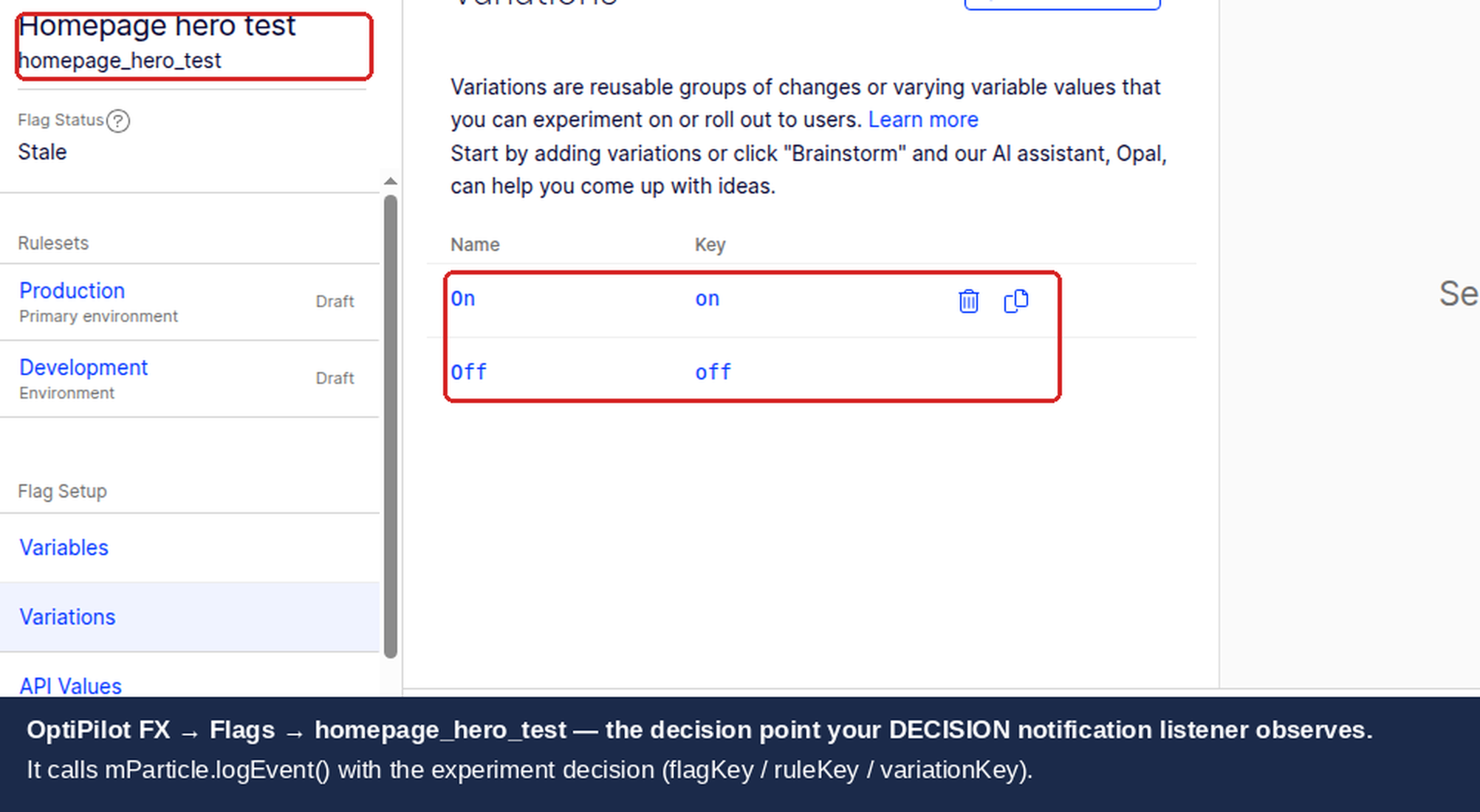
The DECISION notification provides the following data through the decisionInfo object:
Field | Type | Description |
|---|---|---|
| string | The feature flag key (e.g., |
| boolean | Whether the flag is enabled for this user |
| string | The assigned variation (e.g., |
| string | The rule that matched (experiment or rollout key) |
| string | The experiment ID (if an experiment rule matched) |
| string | The variation ID |
| boolean | Whether Optimizely sent an event to its own analytics |
The decisionEventDispatched field indicates whether Optimizely dispatched a decision event to its own analytics backend. When false, Optimizely skipped sending its own event (because the decision matched a targeted delivery/rollout rather than an experiment, or the DISABLE_DECISION_EVENT option was used). Your mParticle integration should still send the event in this case, because mParticle needs the experiment context associated with every relevant session.
Prerequisites
Before starting the integration:
Optimizely Feature Experimentation SDK installed for your platform (JavaScript SDK v5+, React SDK v3+, Android SDK, iOS SDK, or React Native SDK).
mParticle SDK installed and initialized for your platform.
A feature flag with an experiment rule configured in your Optimizely project.
Admin access to both the mParticle dashboard and the Optimizely project.
Consistent user ID strategy across both SDKs for accurate cross-platform identity resolution.
Android SDK Implementation (Official Kit)
The official mParticle Android kit for Optimizely handles DECISION notification listening automatically. Add the kit dependency and configure the connection in the mParticle dashboard.
Gradle Dependency
Add the kit to your app-level build.gradle:
dependencies {
    implementation("com.mparticle:android-optimizely-kit:5+")
}
DECISION Notification Handler
The kit registers a DECISION listener automatically when initialized. To customize the event name or add additional attributes, register your own listener:
import com.optimizely.ab.android.sdk.OptimizelyClient
import com.optimizely.ab.notification.DecisionNotification
import com.mparticle.MParticle
import com.mparticle.MPEvent
import com.mparticle.kits.OptimizelyKit

// The Optimizely client is initialized by the mParticle kit when
// MParticle.start() completes. Synchronous access via
// OptimizelyKit.optimizelyClient returns null until that init finishes. For
// early-start code, use the async pattern instead:
// OptimizelyKit.getOptimizelyClient(OptimizelyClientListener).
val optimizelyClient: OptimizelyClient? = OptimizelyKit.optimizelyClient

optimizelyClient?.notificationCenter?.addNotificationHandler(
    DecisionNotification::class.java
) { notification ->
    // DecisionNotification fires for ALL decision types (AB_TEST, FEATURE,
    // FEATURE_TEST, FEATURE_VARIABLE, ALL_FEATURE_VARIABLES, FLAG). Filter to
    // flag decisions only — matches the JS/Swift/RN sections of this article.
    if (notification.type != "flag") return@addNotificationHandler

    val decisionInfo = notification.decisionInfo

    // Build mParticle event with experiment data
    val attributes = mapOf(
        "flag_key" to (decisionInfo["flagKey"] as? String ?: ""),
        "variation_key" to (decisionInfo["variationKey"] as? String ?: ""),
        "enabled" to (decisionInfo["enabled"]?.toString() ?: "false"),
        "experiment_id" to (decisionInfo["experimentId"] as? String ?: ""),
        "rule_key" to (decisionInfo["ruleKey"] as? String ?: "")
    )

    val event = MPEvent.Builder("Experiment Viewed", MParticle.EventType.Other)
        .customAttributes(attributes)
        .build()

    MParticle.getInstance()?.logEvent(event)
}
The event name "Experiment Viewed" is a convention — you can customize it to match your organization's naming standards. The kit handles initialization timing, ensuring the listener is registered before any decide() calls are made.
iOS SDK Implementation (Official Kit)
The official mParticle iOS kit is available through CocoaPods, Carthage, and Swift Package Manager.
CocoaPods Installation
Add to your Podfile:
pod 'mParticle-Optimizely'
Then run pod install.
For Carthage, add github "mparticle-integrations/mparticle-apple-integration-optimizely" to your Cartfile. For Swift Package Manager, add the package URL from the mParticle integrations repository.
Swift DECISION Notification Handler
import OptimizelySwiftSDK
import mParticle_Apple_SDK

// Access the Optimizely client through the kit
if let optimizelyClient = MPKitOptimizely.optimizelyClient {

    optimizelyClient.notificationCenter?.addDecisionNotificationListener { (type, userId, attributes, decisionInfo) in
        guard type == "flag" else { return }

        let flagKey = decisionInfo["flagKey"] as? String ?? ""
        let variationKey = decisionInfo["variationKey"] as? String ?? ""
        let enabled = decisionInfo["enabled"] as? Bool ?? false
        let experimentId = decisionInfo["experimentId"] as? String ?? ""
        let ruleKey = decisionInfo["ruleKey"] as? String ?? ""

        let eventAttributes: [String: Any] = [
            "flag_key": flagKey,
            "variation_key": variationKey,
            "enabled": String(enabled),
            "experiment_id": experimentId,
            "rule_key": ruleKey
        ]

        if let event = MPEvent(name: "Experiment Viewed", type: .other) {
            event.customAttributes = eventAttributes
            MParticle.sharedInstance().logEvent(event)
        }
    }
}
The iOS kit manages SDK initialization order and ensures the Optimizely client is available before listeners are registered. If you need to customize when the listener activates, register it in your app delegate's didFinishLaunching after mParticle initialization.
JavaScript SDK Implementation (Custom)
The JavaScript SDK v6+ has no official mParticle kit. The following implementation registers a DECISION notification listener manually and sends events to mParticle.
import { createInstance, enums } from "@optimizely/optimizely-sdk";

// Initialize the Optimizely SDK
const optimizely = createInstance({
  sdkKey: "<YOUR_SDK_KEY>",
});

// Helper: send experiment decision to mParticle
function sendToMParticle(flagKey, variationKey, enabled, experimentId, ruleKey) {
  if (typeof window === "undefined" || !window.mParticle) return;

  window.mParticle.logEvent(
    "Experiment Viewed",
    window.mParticle.EventType.Other,
    {
      flag_key: flagKey,
      variation_key: variationKey,
      enabled: String(enabled),
      experiment_id: experimentId || "",
      rule_key: ruleKey || ""
    }
  );
}

// Register the DECISION notification listener BEFORE any decide() calls
optimizely.notificationCenter.addNotificationListener(
  enums.NOTIFICATION_TYPES.DECISION,
  ({ type, userId, attributes, decisionInfo }) => {
    // Only process feature flag decisions
    if (type !== "flag") return;

    const { flagKey, enabled, variationKey, ruleKey, experimentId } = decisionInfo;

    sendToMParticle(flagKey, variationKey, enabled, experimentId, ruleKey);
  }
);

// Make a decision (triggers the listener)
optimizely.onReady().then(() => {
  const user = optimizely.createUserContext("<USER_ID>", {
    plan_type: "premium",
    country: "US",
  });

  const decision = user.decide("checkout_redesign");
  console.log("Variation:", decision.variationKey);
  console.log("Enabled:", decision.enabled);
});
Listener Registration Timing
The DECISION listener must be registered before any decide() calls. If the listener is registered after a decide() call, that decision is lost and never sent to mParticle. The correct order is:
createInstance()— initialize the SDKaddNotificationListener()— register the DECISION listeneronReady()/decide()— make feature flag decisions
Late registration is the most common cause of missing experiment events in mParticle. If you see decisions in Optimizely but no corresponding events in mParticle, check the registration order first.
React SDK Implementation (Custom)
The React SDK wraps the JavaScript SDK with React-specific hooks and providers. The notification listener must be registered at the module level (outside of components) to ensure it captures all decisions, including those triggered during server-side rendering or initial component mount.
import React from "react";
import {
  createInstance,
  OptimizelyProvider,
  useDecision,
  enums,
} from "@optimizely/react-sdk";

// Initialize the SDK at module level
const optimizely = createInstance({
  sdkKey: "<YOUR_SDK_KEY>",
});

// Helper to send events to mParticle
function sendToMParticle(flagKey: string, variationKey: string, enabled: boolean, experimentId: string) {
  if (typeof window === "undefined" || !window.mParticle) return;

  window.mParticle.logEvent(
    "Experiment Viewed",
    window.mParticle.EventType.Other,
    {
      flag_key: flagKey,
      variation_key: variationKey,
      enabled: String(enabled),
      experiment_id: experimentId || ""
    }
  );
}

// Register listener at module level, BEFORE any component renders
optimizely.notificationCenter.addNotificationListener(
  enums.NOTIFICATION_TYPES.DECISION,
  ({ type, decisionInfo }: any) => {
    if (type !== "flag") return;

    const { flagKey, enabled, variationKey, experimentId } = decisionInfo;
    sendToMParticle(flagKey, variationKey, enabled, experimentId);
  }
);

// App component with OptimizelyProvider
function App() {
  return (
    <OptimizelyProvider
      optimizely={optimizely}
      user={{ id: "<USER_ID>", attributes: { plan_type: "premium" } }}
    >
      <CheckoutPage />
    </OptimizelyProvider>
  );
}

// Feature flag component using useDecision hook
function CheckoutPage() {
  const [decision] = useDecision("checkout_redesign");

  // useDecision calls decide() internally,
  // which triggers the DECISION listener automatically

  if (decision.enabled) {
    return <NewCheckout variation={decision.variationKey} />;
  }

  return <OriginalCheckout />;
}
The useDecision hook calls decide() internally, which triggers the DECISION notification listener. You do not need to call sendToMParticle manually inside the component — the module-level listener handles it.
Registering the listener inside a React component (via useEffect) instead of at the module level is a common mistake. Component-level registration may happen after the first decide() call, causing missed events.
React Native Implementation (Custom)
For React Native, use the mParticle React Native SDK (react-native-mparticle) alongside the Optimizely React SDK:
import { createInstance, enums } from "@optimizely/react-sdk";
import MParticle from "react-native-mparticle";

const optimizely = createInstance({
  sdkKey: "<YOUR_SDK_KEY>",
});

// Register DECISION listener for React Native
optimizely.notificationCenter.addNotificationListener(
  enums.NOTIFICATION_TYPES.DECISION,
  ({ type, decisionInfo }: any) => {
    if (type !== "flag") return;

    const { flagKey, enabled, variationKey, experimentId, ruleKey } = decisionInfo;

    // Use the React Native mParticle SDK
    MParticle.logEvent(
      "Experiment Viewed",
      MParticle.EventType.Other,
      {
        flag_key: flagKey,
        variation_key: variationKey,
        enabled: String(enabled),
        experiment_id: experimentId || "",
        rule_key: ruleKey || ""
      }
    );
  }
);
The React Native mParticle SDK bridges to the native Android and iOS mParticle SDKs. Event names and attributes are forwarded identically to the web implementation.
Server-Side Workaround (Hybrid Approach)
Server-side SDKs (Node.js, Python, Java, Go, C#, Ruby, PHP) cannot call mParticle.logEvent() because the mParticle Web SDK runs in the browser. For server-rendered applications that need mParticle integration, use a hybrid approach: make the decision server-side, then pass the decision data to the client for forwarding to mParticle.
// Server-side (Node.js / Express example)
const optimizely = require("@optimizely/optimizely-sdk");

const client = optimizely.createInstance({
  sdkKey: "<YOUR_SDK_KEY>",
});

app.get("/page", async (req, res) => {
  await client.onReady();
  const user = client.createUserContext(req.cookies.userId, {
    plan_type: req.session.planType,
  });

  const decision = user.decide("checkout_redesign");

  // Pass decision data to the template
  res.render("page", {
    mpDecision: JSON.stringify({
      flag_key: decision.flagKey,
      variation_key: decision.variationKey,
      enabled: decision.enabled,
      experiment_id: decision.ruleKey || ""
    }),
    showNewCheckout: decision.enabled && decision.variationKey === "variation_a"
  });
});
<!-- Client-side: read server decision and send to mParticle -->
<script>
  var mpDecision = JSON.parse('{{mpDecision}}');
  if (window.mParticle && window.mParticle.logEvent) {
    window.mParticle.logEvent(
      "Experiment Viewed",
      window.mParticle.EventType.Other,
      {
        flag_key: mpDecision.flag_key,
        variation_key: mpDecision.variation_key,
        enabled: String(mpDecision.enabled),
        experiment_id: mpDecision.experiment_id
      }
    );
  }
</script>
This pattern works for any server-side SDK. The server makes the decision and renders the appropriate experience, then the client-side script sends the decision metadata to mParticle. The mParticle event arrives slightly later than the page render, but within the same session.
Advanced: Revenue Event Handling
Revenue tracking requires attention to unit conversion. The official Android and iOS kits handle currency conversion automatically, but custom implementations must convert manually.
Platform | mParticle Revenue Unit | Optimizely Revenue Unit | Conversion |
|---|---|---|---|
Android (Official Kit) | Dollars | Cents | Automatic (kit handles ×100) |
iOS (Official Kit) | Dollars | Cents | Automatic (kit handles ×100) |
JavaScript (Custom) | Dollars | Cents | Manual (you must ×100) |
React (Custom) | Dollars | Cents | Manual (you must ×100) |
Server-Side (Hybrid) | Dollars | Cents | Manual (you must ×100) |
For custom implementations, multiply revenue by 100 when sending to Optimizely:
// Custom revenue tracking — manual conversion required
const revenueInDollars = 49.99;
const revenueInCents = Math.round(revenueInDollars * 100); // 4999

const user = optimizely.createUserContext("<USER_ID>");
user.trackEvent("purchase", { revenue: revenueInCents });
When sending revenue data to mParticle, use the original dollar amount. mParticle expects dollars in its Commerce Events.
Advanced: Experiment vs Rollout Tracking
Feature flags can have both experiment rules and rollout rules. The decisionEventDispatched field reports whether Optimizely logged an impression (decision event) for this decision. It is true for experiment rules and false for targeted deliveries (rollouts) — and also false when the DISABLE_DECISION_EVENT option is used. You can use it to branch on rule type, but forward the event to mParticle regardless:
optimizely.notificationCenter.addNotificationListener(
  enums.NOTIFICATION_TYPES.DECISION,
  ({ type, decisionInfo }) => {
    if (type !== "flag") return;

    const { flagKey, enabled, variationKey, ruleKey, decisionEventDispatched } = decisionInfo;

    // decisionEventDispatched is true for experiment rules and false for
    // targeted deliveries (rollouts), or when DISABLE_DECISION_EVENT is used.
    // Forward the event to mParticle either way. Record it as-is for context.

    if (window.mParticle && window.mParticle.logEvent) {
      window.mParticle.logEvent(
        "Experiment Viewed",
        window.mParticle.EventType.Other,
        {
          flag_key: flagKey,
          variation_key: variationKey || "off",
          enabled: String(enabled),
          decision_event_dispatched: String(decisionEventDispatched),
          rule_key: ruleKey || ""
        }
      );
    }
  }
);
Sending rollout decisions to mParticle is recommended even though they are not experiments. mParticle uses this data for session association, audience building, and downstream analytics. Knowing that a user was in a rollout (and which percentage) provides valuable context for behavioral analysis.
A/A Testing Validation
Before trusting the integration for production experiments, validate it with an A/A test to confirm data flows correctly and no systematic bias exists.
A/A Test Methodology
Create a feature flag in Optimizely (e.g.,
mp_validation_test).Add an experiment rule with two identical variations (both enable the same feature, no code differences).
Set traffic allocation to 50/50.
Deploy the SDK with the DECISION listener active.
Run for at least 7 days or until 1,000 users per variation.
In mParticle, filter "Experiment Viewed" events by variation and compare event counts. Both variations should show roughly equal participation.
If using downstream tools (Amplitude, Mixpanel), verify that experiment attributes appear correctly in those platforms.
flowchart TD
    A["Create feature flag with A/A experiment rule"] --> B["Deploy SDK with DECISION listener"]
    B --> C["Run for 7+ days / 1000+ users per variation"]
    C --> D{"Events appearing in mParticle Live Stream?"}
    D -->|Yes| E{"Event counts within 5% between variations?"}
    E -->|Yes| F["Integration validated — proceed with real experiments"]
    E -->|No| G["Check listener timing and user ID consistency"]
    D -->|No| H["Check mParticle SDK initialization and listener registration"]
    G --> I["Re-run A/A test"]
    H --> I
Validating the Integration
After setup, verify that decision data reaches mParticle correctly.
Console Verification
Open the browser console on a page where a feature flag is evaluated:
// Verify mParticle SDK is loaded
console.log("mParticle loaded:", typeof window.mParticle !== "undefined");

// Verify Optimizely SDK is loaded
console.log("Optimizely loaded:", typeof window.optimizelyClientInstance !== "undefined");

// Manually trigger a decision and check the listener fires
// (The listener should log to mParticle automatically)
mParticle Live Stream
Check the mParticle Live Stream dashboard for "Experiment Viewed" events. Key details to verify:
Event name matches your configuration ("Experiment Viewed" by default).
Event attributes include
flag_key,variation_key,enabled, andexperiment_id.Events arrive within 3-5 minutes of the decision being made.
If events do not appear, check the mParticle SDK debug output for errors.
SDK Debug Logging
Enable debug logging on the Optimizely SDK to confirm decisions are being made and notifications are dispatched:
const optimizely = createInstance({
  sdkKey: "<YOUR_SDK_KEY>",
  logLevel: "DEBUG",
});
The debug output shows each decision evaluation, including which rule matched, which variation was assigned, and whether the notification was dispatched. Look for DECISION notification entries in the log output.
Analyzing Experiments in mParticle
Once experiment decisions flow into mParticle, use mParticle's audience and forwarding capabilities for analysis.
Audiences by Variation
Create mParticle audiences segmented by experiment participation:
Go to Audiences in the mParticle dashboard.
Create an audience with an event-based rule targeting "Experiment Viewed" events.
Add attribute filters for
flag_keyandvariation_keyto target specific variations.Name audiences descriptively: "Checkout Redesign - Variation A", "Checkout Redesign - Control".
These audiences update in real time and can be forwarded to any connected output.
Forwarding to Downstream Tools
mParticle experiment events and audiences can be forwarded to connected outputs:
Amplitude or Mixpanel: Analyze experiment impact on retention, engagement, and feature adoption.
BigQuery or Snowflake: Run cross-experiment queries and build custom dashboards.
Braze or Iterable: Trigger personalized messaging based on experiment variation.
Segment or Rudderstack: Further route experiment data across your stack.
Each downstream tool receives the full event with all attributes, enabling variation-level analysis without additional integration work.
Revenue Attribution
When using mParticle audiences with experiment variation filters, you can attribute revenue to specific variations across all connected commerce and analytics tools. This provides a unified view of experiment revenue impact beyond what Optimizely's built-in results show.
Troubleshooting
Listener Not Firing
If the DECISION notification listener never executes:
Registration timing: The listener must be registered before any
decide()calls. Register immediately aftercreateInstance(), beforeonReady()resolves.Wrong notification type: Verify you are listening for
enums.NOTIFICATION_TYPES.DECISION, notTRACKor another type.React: registered inside component: Register the listener at module level, not inside a
useEffecthook. Component-level registration may happen after the firstdecide()call.SDK not initialized: Ensure
createInstance()has completed and the datafile has been fetched. Useoptimizely.onReady()to confirm before callingdecide().
// Correct registration order
const optimizely = createInstance({ sdkKey: "<YOUR_SDK_KEY>" });

// Register listener IMMEDIATELY after createInstance
optimizely.notificationCenter.addNotificationListener(
  enums.NOTIFICATION_TYPES.DECISION,
  myListenerCallback
);

// Now safe to make decisions
optimizely.onReady().then(() => {
  const user = optimizely.createUserContext("user123");
  const decision = user.decide("my_flag");
});
Events Not Reaching mParticle
If the listener fires but events do not appear in mParticle:
mParticle SDK not loaded: Verify
window.mParticle(web) or the native mParticle SDK (mobile) is available when the listener executes. The listener may fire before the mParticle SDK initializes.Expected delay: mParticle Live Stream has a 3-5 minute processing delay. Events do not appear immediately after being sent.
User ID mismatch: If mParticle and Optimizely use different user identifiers, events are sent but cannot be reconciled. Verify that both SDKs use the same user ID.
Server-Side SDKs Not Supported
Server-side SDKs (Node.js, Python, Java, Go, C#, Ruby, PHP) do not have official mParticle kits. The DECISION listener fires on the server, but there is no mParticle SDK to send events to.
Use the hybrid workaround documented in the Server-Side Workaround section: make the decision server-side, pass the decision data to the client via a template variable or API response, and send the mParticle event from the browser.
Revenue Conversion Issues
Revenue discrepancies between mParticle and Optimizely are typically caused by unit differences:
Official kits (Android/iOS): Revenue conversion is handled automatically. mParticle sends dollars, the kit converts to cents for Optimizely.
Custom implementations (JS/React/RN): You must multiply revenue by 100 manually when tracking events in Optimizely. mParticle Commerce Events use dollars.
If revenue numbers are off by exactly 100x, check whether conversion is being applied twice (once by your code, once by the SDK) or not at all.
decisionEventDispatched: false
This field is false when:
The decide() call used the DISABLE_DECISION_EVENT option, so no decision event was sent.
sendFlagDecisionsis set tofalsein the SDK configuration.The decision matched a rollout rule rather than an experiment rule.
Your mParticle listener should still send the event when decisionEventDispatched is false. mParticle needs the experiment context associated with every session where the flag is evaluated, regardless of whether Optimizely dispatched its own analytics event.
Related guides
Also available for
Related articles
Subscribe
Practical Optimizely tips, monthly. No fluff.