
Integrate Contentsquare with Optimizely Feature Experimentation
TL;DR
Optimizely Feature Experimentation uses SDK-based feature flags rather than a client-side snippet. This means the integration with Contentsquare works differently from Web Experimentation: instead of a JSON analytics plugin with track_layer_decision callbacks, you register a DECISION notification listener on the SDK instance and push Dynamic Variables to Contentsquare from within that listener.
This guide covers implementations for the JavaScript, React, and React Native SDKs. Server-side SDKs (Node, Python, Java, Go) cannot integrate with Contentsquare directly because the Contentsquare tag runs in the browser.
How the Integration Works
When the Optimizely Feature Experimentation SDK evaluates a feature flag using the decide() method, it fires a DECISION notification. You register a listener for this notification that captures the flag key, variation key, and experiment details, then sends the data to Contentsquare as a Dynamic Variable using _uxa.push(["trackDynamicVariable", ...]).
flowchart TB
    A["createInstance() initializes SDK"] --> B["Register DECISION listener"]
    B --> C["user.decide('flag_key')"]
    C --> D["DECISION notification fires"]
    D --> E["Listener builds AB_OP_ key-value"]
    E --> F["_uxa.push trackDynamicVariable"]
    F --> G["Contentsquare receives DVAR"]
SDK Support Matrix
Not all Optimizely SDKs can integrate with Contentsquare. The integration requires browser access to call window._uxa.push():
SDK | Supported | Notes |
|---|---|---|
JavaScript (Browser) | Yes | Direct |
React | Yes | Uses same |
React Native | Yes | Uses |
Node.js | No | No browser access |
Python | No | No browser access |
Java | No | No browser access |
Go | No | No browser access |
For server-side SDKs, see the hybrid workaround in the Troubleshooting section.
Decision Notification Data
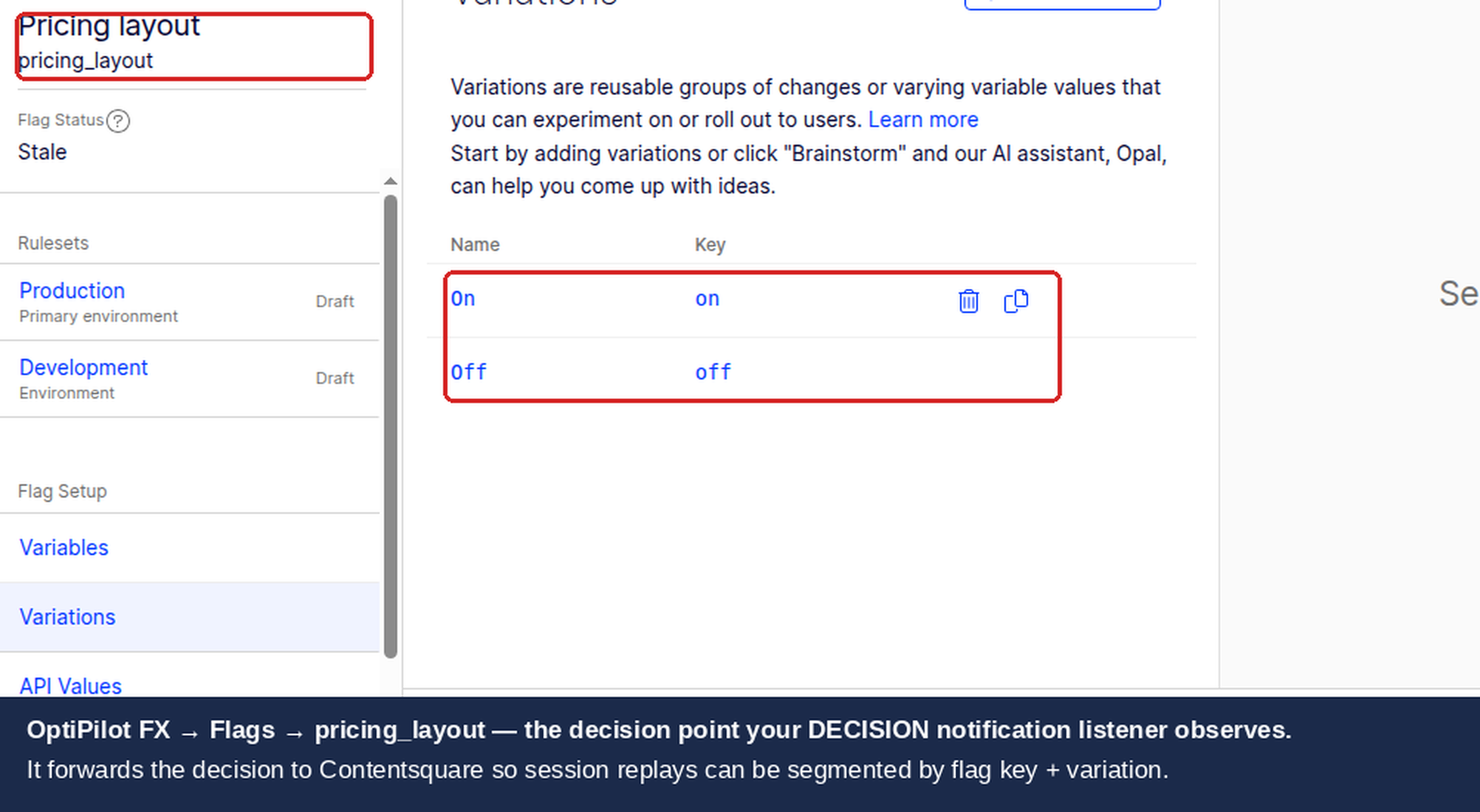
The DECISION notification provides the following data through the decisionInfo object:
Field | Type | Description |
|---|---|---|
| string | The feature flag key (e.g., |
| boolean | Whether the flag is enabled for this user |
| string | The assigned variation (e.g., |
| string | The rule that matched (experiment or rollout key) |
| string | The experiment ID (if an experiment rule matched) |
| string | The variation ID |
| boolean | Whether Optimizely sent an event to its own analytics |
The decisionEventDispatched field indicates whether the SDK dispatched a decision event (impression) to Optimizely. It is false when the decision matched a targeted delivery (rollout) rather than an experiment rule, or when DISABLE_DECISION_EVENT was passed as a decide option. Your Contentsquare integration should still send the Dynamic Variable regardless, because Contentsquare needs the DVAR associated with every session where the flag is evaluated.
Prerequisites
Before starting the integration:
Contentsquare tag installed on your site (or the React Native bridge for mobile apps)
Optimizely Feature Experimentation SDK — JavaScript SDK v5+, React SDK v3+, or React Native SDK
A feature flag with an experiment rule configured in your Optimizely project
Dynamic Variables module enabled in your Contentsquare account (contact your CSM if not visible)
JavaScript SDK Implementation
The JavaScript SDK implementation is the most straightforward approach. You initialize the SDK, register a DECISION notification listener, and call decide() on your feature flags.
import { createInstance, enums } from "@optimizely/optimizely-sdk";

// Initialize the Optimizely SDK
const optimizely = createInstance({
  sdkKey: "<YOUR_SDK_KEY>",
});

// Register Contentsquare integration in CS_CONF
// This tells Contentsquare that Optimizely integration is active
window.CS_CONF = window.CS_CONF || {};
window.CS_CONF.integrations = window.CS_CONF.integrations || [];
window.CS_CONF.integrations.push("AB_OP");

// Helper: send a Dynamic Variable to Contentsquare
function sendToContentsquare(key, value) {
  window._uxa = window._uxa || [];
  window._uxa.push(["trackDynamicVariable", {
    key: key,
    value: value
  }]);
}

// Register the DECISION notification listener BEFORE any decide() calls
optimizely.notificationCenter.addNotificationListener(
  enums.NOTIFICATION_TYPES.DECISION,
  ({ type, userId, attributes, decisionInfo }) => {
    // Only process feature flag decisions
    if (type !== "flag") return;

    const { flagKey, enabled, variationKey, ruleKey, experimentId } = decisionInfo;

    // Build the Dynamic Variable key
    const csKey = experimentId
      ? "AB_OP_" + experimentId
      : "AB_OP_" + flagKey;

    // Build the value
    const csValue = enabled ? variationKey : "off";

    sendToContentsquare(csKey, csValue);
  }
);

// Make a decision (triggers the listener)
optimizely.onReady().then(() => {
  const user = optimizely.createUserContext("<USER_ID>", {
    plan_type: "premium",
    country: "US",
  });

  const decision = user.decide("checkout_redesign");
  console.log("Variation:", decision.variationKey);
  console.log("Enabled:", decision.enabled);
});
Timing: afterPageView Alternative
If your Contentsquare implementation uses the afterPageView callback to ensure DVARs are sent after the page is tracked, you can wrap the sendToContentsquare call:
function sendToContentsquareAfterPageView(key, value) {
  window._uxa = window._uxa || [];
  window._uxa.push(["afterPageView", function () {
    window._uxa.push(["trackDynamicVariable", {
      key: key,
      value: value
    }]);
  }]);
}
This ensures the Dynamic Variable is associated with the correct pageview in Contentsquare, which matters for single-page applications where pageviews and decisions may occur at different times.
React SDK Implementation
The React SDK wraps the JavaScript SDK with React-specific hooks and providers. The notification listener should be registered at the module level (outside of components) to ensure it captures all decisions.
import React from "react";
import {
  createInstance,
  OptimizelyProvider,
  useDecision,
  enums,
} from "@optimizely/react-sdk";

// Initialize the SDK at module level
const optimizely = createInstance({
  sdkKey: "<YOUR_SDK_KEY>",
});

// Register CS_CONF integration
if (typeof window !== "undefined") {
  window.CS_CONF = window.CS_CONF || {};
  window.CS_CONF.integrations = window.CS_CONF.integrations || [];
  window.CS_CONF.integrations.push("AB_OP");
}

// Helper to send DVARs to Contentsquare
function sendToContentsquare(key: string, value: string) {
  if (typeof window === "undefined") return;
  window._uxa = window._uxa || [];
  window._uxa.push(["trackDynamicVariable", { key, value }]);
}

// Register listener at module level, BEFORE any component renders
optimizely.notificationCenter.addNotificationListener(
  enums.NOTIFICATION_TYPES.DECISION,
  ({ type, decisionInfo }: any) => {
    if (type !== "flag") return;

    const { flagKey, enabled, variationKey, experimentId } = decisionInfo;
    const csKey = experimentId ? "AB_OP_" + experimentId : "AB_OP_" + flagKey;
    const csValue = enabled ? variationKey : "off";

    sendToContentsquare(csKey, csValue);
  }
);

// App component with OptimizelyProvider
function App() {
  return (
    <OptimizelyProvider
      optimizely={optimizely}
      user={{ id: "<USER_ID>", attributes: { plan_type: "premium" } }}
    >
      <CheckoutPage />
    </OptimizelyProvider>
  );
}

// Feature flag component using useDecision hook
function CheckoutPage() {
  const [decision] = useDecision("checkout_redesign");

  // The useDecision hook calls decide() internally,
  // which triggers the DECISION listener automatically

  if (decision.enabled) {
    return <NewCheckout variation={decision.variationKey} />;
  }

  return <OriginalCheckout />;
}
The useDecision hook calls decide() internally, which triggers the DECISION notification listener. You do not need to call sendToContentsquare manually inside the component — the module-level listener handles it.
React Native SDK Implementation
For React Native, Contentsquare provides a native bridge instead of the browser _uxa global. Use the @contentsquare/react-native-bridge package:
import { createInstance, enums } from "@optimizely/react-sdk";
import Contentsquare from "@contentsquare/react-native-bridge";

const optimizely = createInstance({
  sdkKey: "<YOUR_SDK_KEY>",
});

// Register DECISION listener for React Native
optimizely.notificationCenter.addNotificationListener(
  enums.NOTIFICATION_TYPES.DECISION,
  ({ type, decisionInfo }: any) => {
    if (type !== "flag") return;

    const { flagKey, enabled, variationKey, experimentId } = decisionInfo;
    const csKey = experimentId ? "AB_OP_" + experimentId : "AB_OP_" + flagKey;
    const csValue = enabled ? variationKey : "off";

    // Use the React Native bridge instead of _uxa.push
    Contentsquare.send("trackDynamicVariable", {
      key: csKey,
      value: csValue,
    });
  }
);
The React Native bridge handles communication with the native Contentsquare SDK. Everything else — listener registration, key/value formatting, timing — works the same as the browser implementation.
Advanced: Custom Segmentation
Beyond basic variation tracking, you can send additional Dynamic Variables for richer segmentation.
Flag Key vs Experiment ID Naming
You have two options for the DVAR key:
Strategy | Key Format | When to Use |
|---|---|---|
Experiment ID |
| When you care about the specific experiment rule |
Flag key |
| When you want to track the flag regardless of which rule matched |
The flag key approach is simpler and more readable. The experiment ID approach is better when the same flag has multiple experiment rules over time and you need to distinguish between them.
Tracking Rollouts vs Experiments
Feature flags can have both experiment rules and rollout rules. To distinguish them:
optimizely.notificationCenter.addNotificationListener(
  enums.NOTIFICATION_TYPES.DECISION,
  ({ type, decisionInfo }) => {
    if (type !== "flag") return;

    const { flagKey, enabled, variationKey, ruleKey, decisionEventDispatched } = decisionInfo;

    // Distinguish experiment from rollout
    const ruleType = decisionEventDispatched ? "experiment" : "rollout";

    sendToContentsquare("AB_OP_" + flagKey, variationKey || "off");
    sendToContentsquare("AB_OP_" + flagKey + "_type", ruleType);
  }
);
This lets you segment Contentsquare data by visitors in experiment rules vs rollout rules, which is important when analyzing behavior differences.
Multi-Flag Combined DVAR
When visitors participate in multiple feature flag experiments, create a combined DVAR:
// Accumulate decisions, then send combined key
const activeDecisions = [];

optimizely.notificationCenter.addNotificationListener(
  enums.NOTIFICATION_TYPES.DECISION,
  ({ type, decisionInfo }) => {
    if (type !== "flag") return;
    if (!decisionInfo.enabled) return;

    activeDecisions.push(decisionInfo.flagKey + ":" + decisionInfo.variationKey);

    // Send combined DVAR
    sendToContentsquare("AB_OP_multi_flag", activeDecisions.sort().join("|"));
  }
);
A/A Testing Validation
Before trusting the integration for production experiments, validate it with an A/A test.
A/A Test Methodology for Feature Experimentation
Create a feature flag in Optimizely (e.g.,
cs_validation_test).Add an experiment rule with two identical variations (both enable the same feature, no code differences).
Set traffic allocation to 50/50.
Deploy the SDK with the DECISION listener active.
Run for at least 7 days or until 1,000 visitors per variation.
In Contentsquare, create segments for each variation and compare:
Session duration
Pages per session
Click rates on key elements
Scroll depth
flowchart TD
    A["Create feature flag with A/A experiment rule"] --> B["Deploy SDK with DECISION listener"]
    B --> C["Run for 7+ days / 1000+ visitors per variation"]
    C --> D{"Metrics within 5% between variations?"}
    D -->|Yes| E["Integration validated"]
    D -->|No| F["Check listener timing and SDK initialization"]
    F --> G["Verify _uxa commands fire correctly"]
    G --> H["Re-run A/A test"]
Validating the Integration
After setup, verify that data reaches Contentsquare.
Console Verification
Open the browser console on a page where a feature flag is evaluated:
// Check Contentsquare tag
console.log("CS tag loaded:", typeof window._uxa !== "undefined");

// Check CS_CONF integrations
console.log("CS integrations:", window.CS_CONF && window.CS_CONF.integrations);

// Inspect queued DVAR commands
if (window._uxa) {
  window._uxa.forEach(function(cmd, i) {
    if (Array.isArray(cmd) && cmd[0] === "trackDynamicVariable") {
      console.log("DVAR #" + i + ":", JSON.stringify(cmd[1]));
    }
  });
}
SDK Debug Logging
Enable debug logging on the Optimizely SDK to confirm decisions are being made:
const optimizely = createInstance({
  sdkKey: "<YOUR_SDK_KEY>",
  logLevel: "DEBUG",
});
The debug output shows each decision evaluation, including which rule matched, which variation was assigned, and whether the notification was dispatched. Look for DECISION notification entries in the log.
CS_CONF.integrations Check
Verify that the Contentsquare integration identifier is registered:
console.log("CS_CONF.integrations:", window.CS_CONF?.integrations);
// Expected: ["AB_OP"] or similar
If CS_CONF.integrations does not include your integration identifier, the Dynamic Variables may not be properly associated with Contentsquare's analytics.
Contentsquare Tag Assistant
The Contentsquare Tag Assistant browser extension shows:
Whether the CS tag is active
All Dynamic Variables sent during the session
Any errors in variable formatting
Look for your AB_OP_ variables in the Tag Assistant panel.
Analyzing Experiments in Contentsquare
Once data is flowing, use Contentsquare's analysis tools to understand experiment impact.
Segments by Variation
Create segments for each variation to use across all Contentsquare tools:
Go to Segments in Contentsquare.
Create a segment with a Dynamic Variable condition: key =
AB_OP_<experimentId>, value =variation_a.Repeat for each variation (including
"off"for disabled users).Name segments descriptively: "Checkout Redesign - Variation A", "Checkout Redesign - Control".
Session Replay Analysis
Apply variation segments to session replays:
Go to Session Replay and apply the control segment.
Watch 10-20 sessions for behavior patterns.
Switch to the variation segment and compare.
Look for differences in click patterns, scroll depth, rage clicks, and hesitation.
Enabled vs Disabled Comparison
Feature Experimentation offers a unique analysis angle: comparing users with the feature enabled vs disabled. This is particularly useful for rollouts:
Create a segment for
AB_OP_<flagKey>= any variation (enabled users).Create a segment for
AB_OP_<flagKey>="off"(disabled users).Compare session behavior metrics between the two groups.
Use this to validate that the feature does not degrade user experience before increasing rollout percentage.
Journey Analysis per Variation
Compare navigation flows between variations:
Go to Journey Analysis.
Apply the control segment and map visitor flow.
Switch to the variation segment and look for changes in drop-off points and navigation patterns.
Troubleshooting
Listener Not Firing
If the DECISION notification listener never executes:
SDK not initialized: Ensure
createInstance()has completed and the datafile has been fetched. Useoptimizely.onReady()to confirm before callingdecide().Listener registered too late: Register the listener immediately after
createInstance(), before anydecide()calls. If using React, register at module level, not inside a component.Wrong notification type: Verify you are listening for
enums.NOTIFICATION_TYPES.DECISION, notTRACKor another type.
// Correct order
const optimizely = createInstance({ sdkKey: "<YOUR_SDK_KEY>" });

// Register listener BEFORE any decide() calls
optimizely.notificationCenter.addNotificationListener(
  enums.NOTIFICATION_TYPES.DECISION,
  myListenerCallback
);

// Now safe to make decisions
optimizely.onReady().then(() => {
  const user = optimizely.createUserContext("user123");
  const decision = user.decide("my_flag");
});
Dynamic Variables Not Reaching Contentsquare
If the listener fires but DVARs do not appear in Contentsquare:
CS tag not loaded: Verify the Contentsquare tag is present and active. The
window._uxa = window._uxa || []queue pattern handles race conditions, but the tag must eventually load for queued commands to process.Processing delay: New Dynamic Variables can take up to 24 hours to appear in the Contentsquare UI for segmentation.
Module not enabled: The Dynamic Variables module must be active in your Contentsquare workspace.
Server-Side SDKs Not Supported
Server-side SDKs (Node.js, Python, Java, Go) cannot call _uxa.push because there is no browser. For server-rendered applications that need Contentsquare integration:
Hybrid workaround: Make the decision server-side, then pass the decision data to the client via a data layer or inline script:
// Server-side (Node.js / Express example)
app.get("/page", (req, res) => {
  const user = optimizely.createUserContext(req.cookies.userId);
  const decision = user.decide("checkout_redesign");

  res.render("page", {
    csDecision: {
      key: "AB_OP_" + decision.flagKey,
      value: decision.enabled ? decision.variationKey : "off"
    }
  });
});
<!-- Client-side: read server decision and send to Contentsquare -->
<script>
  var csDecision = JSON.parse('{{csDecisionJSON}}');
  window._uxa = window._uxa || [];
  window._uxa.push(["trackDynamicVariable", csDecision]);
</script>
decisionEventDispatched: false
This field is false when:
The decision matched a targeted delivery (rollout) rather than an experiment rule — only experiment rules dispatch decision events
DISABLE_DECISION_EVENTwas passed as a decide optionsendFlagDecisionsis set tofalsein the SDK configuration
Your Contentsquare listener should still send the DVAR when this is false, because Contentsquare needs the variable associated with every session where the flag is evaluated.
SPA Routing Issues
In single-page applications, feature flag decisions may fire on route changes:
Each
decide()call triggers the listener and sends a DVAR. This is correct behavior — Contentsquare needs the variable for each virtual pageview.If your SPA makes many rapid
decide()calls during navigation, consider deduplicating within a short window (e.g., 100ms) to avoid sending redundant DVARs.Ensure the Contentsquare tag handles virtual pageviews. If it does not, DVARs sent after route changes may not be associated with the correct page.
Related guides
Also available for
Related articles
Subscribe
Practical Optimizely tips, monthly. No fluff.