
Integrate Adobe Analytics with Optimizely Web Experimentation
TL;DR
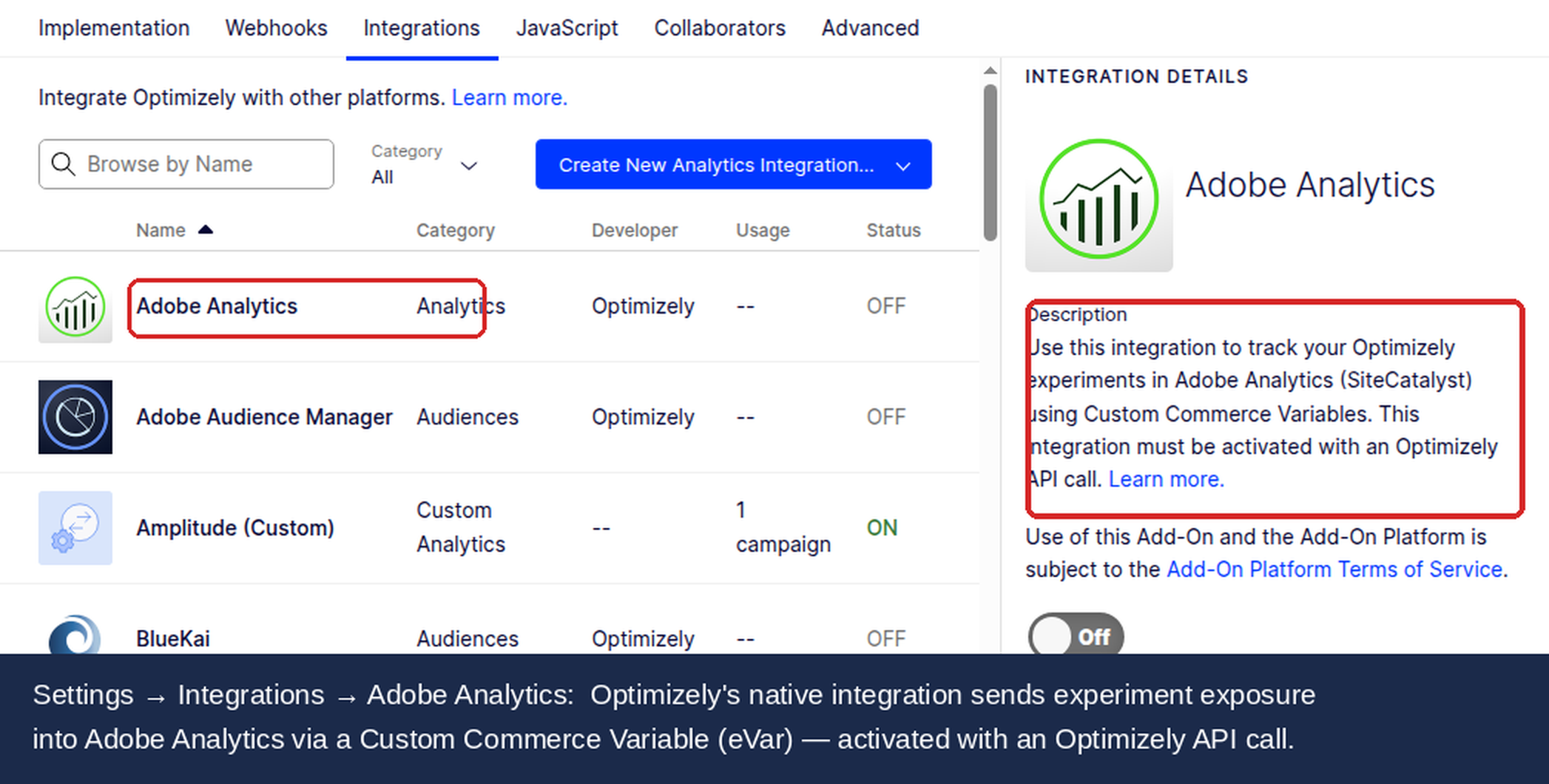
Optimizely Web Experimentation integrates with Adobe Analytics to send experiment and personalization campaign data directly into your Adobe Analytics reports. This integration lets you analyze experiment performance alongside your existing Adobe Analytics metrics, segments, and calculated metrics in Analysis Workspace.
This guide covers three integration approaches, explains when to use each one, and walks through building an A/B testing dashboard in Analysis Workspace.
How the Integration Works
When a visitor is bucketed into an Optimizely experiment or personalization campaign, Optimizely generates a decision string containing the experiment name, experiment ID, variation name, and variation ID. This string is sent to Adobe Analytics as an eVar, prop, or list variable value.
flowchart TB
    A[Visitor lands on page] --> B[Optimizely makes bucketing decision]
    B --> C[Decision string generated]
    C --> D[String sent to Adobe Analytics eVar/prop]
    D --> E[Data available in Analysis Workspace]
The decision string follows this format for A/B tests:
experiment_name(experimentID):variation_name(variationID)
For personalization campaigns, the format includes holdback information:
campaign_name(campaignID):experiment_audience_string(experimentID):variation_name(variationID)
Visitors in the campaign holdback group receive:
campaign_name(campaignID):experiment_audience_string(experimentID):variation_name(variationID):holdback
This string format lets you segment Adobe Analytics reports by experiment, variation, or campaign. You can filter for specific experiments using the experiment ID or isolate holdback visitors to measure campaign lift.
Three Integration Approaches
Optimizely offers three ways to send experiment data to Adobe Analytics. Each approach differs in setup complexity, API usage impact, and scalability.
Feature | Built-in eVar | Custom eVar/Prop (via s.t()) | List Variable |
|---|---|---|---|
Setup complexity | Low (UI only) | Medium (requires code) | Medium (requires code) |
API usage impact | Uses s.tl() tracklink calls | No extra API calls | No extra API calls |
Scalability | Limited by API quotas | Scales well | Best for many experiments |
Delayed campaign support | Polls every 200ms for 10s | Manual with trackDelayedCampaigns | Manual with trackDelayedCampaigns |
When to use | Quick setup, few experiments | Most production implementations | Many concurrent experiments |
The following sections cover each approach in detail, starting with the recommended option.
Recommended: Custom eVar/Prop Integration via s.t()
The custom eVar/prop approach is the recommended integration method for production environments. Unlike the built-in integration, it piggybacks on your existing Adobe Analytics s.t() pageview call instead of firing separate s.tl() tracklink calls. This avoids consuming Adobe Analytics server call quotas and provides better timing control.
Step 1: Reserve an eVar in Adobe Report Suite Manager
Before configuring Optimizely, reserve a dedicated eVar in Adobe Analytics:
Go to Report Suite Manager in Adobe Analytics.
Select Edit Settings > Conversions > Conversion Variables.
Click Add New eVar and configure it with these recommended settings:
Setting | Recommended Value | Explanation |
|---|---|---|
Name | Optimizely Experiment | Descriptive name for your reports |
Allocation | Most Recent (Last) | Associates the latest experiment assignment with conversion events |
Expire After | Visit | Resets for each new visit so returning visitors get fresh assignments |
Type | Text String | Decision strings are text-based |
Status | Basic Subrelations | Enables breakdown reports |
The "Most Recent (Last)" allocation is typically correct for experimentation because you want conversion metrics attributed to the variation the visitor saw most recently. Use "Linear" allocation only if you need to distribute credit across multiple variation exposures within a single visit.
Step 2: Create the Custom Integration in Optimizely
Go to Settings > Integrations in your Optimizely project.
Click Create Analytics Integration > Using JSON.
Paste the following configuration JSON:
{
  "plugin_type": "analytics_integration",
  "name": "Adobe Analytics (Custom eVar)",
  "form_schema": [
    {
      "default_value": "1",
      "field_type": "text",
      "name": "eVar number",
      "api_name": "evar_num",
      "description": "The eVar number reserved for Optimizely (e.g., 1 for eVar1)"
    },
    {
      "default_value": "s",
      "field_type": "text",
      "name": "Adobe tracker variable",
      "api_name": "s_variable",
      "description": "Your Adobe Analytics tracker variable name (default: s)"
    }
  ],
  "description": "Sends Optimizely experiment data to Adobe Analytics via eVar on s.t() call"
}
Save the integration and enable it.
Step 3: Add the assignCampaigns Code
The critical step is adding the assignCampaigns function to your Adobe Analytics implementation. This code must execute before the s.t() call fires.
Add the following to your s_code.js or Adobe Launch / Tags implementation:
// Optimizely + Adobe Analytics: Assign campaign data to eVar
// IMPORTANT: This must run BEFORE s.t() fires

function assignCampaigns(tracker) {
  var optimizely = window.optimizely;
  if (!optimizely || typeof optimizely.get !== 'function') return;

  var state = optimizely.get('state');
  if (!state) return;

  var campaigns = state.getCampaignStates({ isActive: true });
  var eVarNum = 'eVar1'; // Update to match your reserved eVar number
  var values = [];

  for (var campaignId in campaigns) {
    if (campaigns.hasOwnProperty(campaignId)) {
      var decisionString = state.getDecisionString({
        campaignId: campaignId
      });
      if (decisionString) {
        values.push(decisionString);
      }
    }
  }

  if (values.length > 0) {
    tracker[eVarNum] = values.join(' | ');
  }
}

// Call before s.t()
assignCampaigns(s);
s.t();
If your site uses a custom tracker variable name (not the default s), replace the s parameter:
// Example with custom tracker named "omntag"
assignCampaigns(omntag);
omntag.t();
Step 4: Handle Delayed Campaigns
Some experiments use manual activation, geo-targeting, or conditional triggers that resolve after the initial pageview. For these delayed campaigns, use trackDelayedCampaigns:
function trackDelayedCampaigns(tracker) {
  var optimizely = window.optimizely;
  if (!optimizely) return;

  optimizely.push({
    type: 'addListener',
    filter: { type: 'lifecycle', name: 'campaignDecided' },
    handler: function (event) {
      var state = optimizely.get('state');
      var decisionString = state.getDecisionString({
        campaignId: event.data.campaign.id
      });
      if (decisionString) {
        var eVarNum = 'eVar1'; // Match your reserved eVar number
        tracker[eVarNum] = decisionString;
        tracker.tl(true, 'o', 'Optimizely Delayed Decision');
      }
    }
  });
}

// Call once during page initialization
trackDelayedCampaigns(s);
Note that delayed campaigns require s.tl() because the pageview has already fired. This generates additional server calls, but only for the delayed subset of your experiments.
Alternative: Built-in eVar Integration
The built-in integration is the simplest option, configured entirely through the Optimizely UI with no code changes required.
When to Use
Quick proof-of-concept or testing environments
Small number of concurrent experiments (fewer than 5)
No concerns about Adobe Analytics API call quotas
Sites where modifying
s_code.jsis difficult or restricted
Setup Steps
Go to Settings > Integrations in Optimizely.
Find Adobe Analytics and click Enable.
Select the eVar number reserved for Optimizely data.
(Optional) Enter a custom sVariable if your tracker is not the default
s.Navigate to each experiment and enable the integration under Manage Campaign > Integrations.
How It Works
When the built-in integration is enabled, Optimizely fires an s.tl() tracklink call for each experiment decision. This sends the decision string to your selected eVar.
If the Adobe Analytics object is not available when a decision is made (common with async loading), Optimizely polls for the object every 200 milliseconds for up to 10 seconds. This automatic retry handles most delayed activation scenarios without additional code.
Limitations
The primary limitation is API usage. Each s.tl() call counts as a server call against your Adobe Analytics contract. If you run multiple experiments with high traffic, these additional calls can contribute to API overage charges. For production implementations with significant traffic, the custom eVar/prop approach (via s.t()) is preferred.
Alternative: List Variable Integration
List variables (list1, list2, list3) let you capture multiple experiment assignments in a single variable, making them ideal for sites running many concurrent experiments.
When to Use
Running 5 or more concurrent experiments
Want all experiment data consolidated in one variable
Comfortable with slightly less granular segmentation in Analysis Workspace
Setup
The list variable approach uses the same assignCampaigns pattern as the custom eVar/prop method, but writes to a list variable instead:
function assignCampaignsToList(tracker) {
  var optimizely = window.optimizely;
  if (!optimizely || typeof optimizely.get !== 'function') return;

  var state = optimizely.get('state');
  if (!state) return;

  var campaigns = state.getCampaignStates({ isActive: true });
  var values = [];

  for (var campaignId in campaigns) {
    if (campaigns.hasOwnProperty(campaignId)) {
      var decisionString = state.getDecisionString({
        campaignId: campaignId
      });
      if (decisionString) {
        values.push(decisionString);
      }
    }
  }

  if (values.length > 0) {
    // Use list1, list2, or list3 depending on availability
    tracker.list1 = values.join(',');
  }
}

assignCampaignsToList(s);
s.t();
Configure the list variable in Adobe Analytics under Report Suite Manager > Edit Settings > Conversions > List Variables. Set the delimiter to comma and the expiration to "Visit."
Trade-offs
List variables consolidate all experiments into a single variable. While this saves eVar slots, it means you cannot directly use eVar-level segmentation features like participation metrics. You can still break down list variable values in freeform tables, but the workflow differs slightly from eVar-based reports.
Building an A/B Testing Dashboard in Analysis Workspace
Once data flows into Adobe Analytics, build a dedicated dashboard in Analysis Workspace to monitor experiment performance.
flowchart TD
    A[Analysis Workspace Dashboard] --> B[Freeform Table: Experiment Variations]
    A --> C[Line Chart: Cumulative CVR Uplift]
    A --> D[Line Chart: Statistical Significance]
    A --> E[Segment Comparison Panel]
    B --> F[eVar values as rows]
    B --> G[Visits, Orders, Revenue as columns]
    C --> H[Calculated metric: cumulative conversion rate]
    D --> I[Calculated metric: T-test significance]
    E --> J[Device type breakdown]
    E --> K[New vs returning visitors]
Step 1: Create a Freeform Table
Open Analysis Workspace and create a new project.
Drag your Optimizely eVar from the left panel into the freeform table.
Add metrics columns: Visits, Orders (or your primary conversion event), and Revenue.
The eVar values display as experiment decision strings. Filter or search for specific experiment IDs to isolate individual tests.
Step 2: Create a Cumulative CVR Uplift Metric
Create a calculated metric to track cumulative conversion rate over time:
Go to Components > Calculated Metrics > Create.
Name it "Cumulative CVR."
Use the formula:
Cumulative(Orders) / Cumulative(Visits)Apply this metric to a line chart visualization with a daily granularity.
To calculate uplift between variations, create a segment for each variation using the eVar value, then compare the cumulative CVR metrics side by side.
Step 3: Add Statistical Significance
Create a calculated metric using the T-test approximation:
Create a calculated metric named "Approximate Significance."
Use the Z-score formula for proportion comparison:
Z = (p1 - p2) / sqrt(p_pool * (1 - p_pool) * (1/n1 + 1/n2))
Where p1 and p2 are conversion rates for control and variation, and n1/n2 are sample sizes.
Add reference lines in your line chart at common confidence thresholds:
1.645 for 90% confidence
1.960 for 95% confidence
2.241 for 97.5% confidence
Step 4: Add Segment Breakdowns
Apply segments to your freeform table for deeper analysis:
Device type: Compare experiment impact on desktop vs mobile vs tablet
New vs returning visitors: Identify if the variation affects new visitors differently
Traffic source: Understand channel-specific experiment effects
Pro Tips
Tag your metrics and segments with a consistent naming convention (e.g., prefix with "Opti:") so team members can find experiment-related components.
Add text annotations to your dashboard explaining the experiment hypothesis, start date, and expected duration for stakeholders who view the dashboard.
Save as a template if you run experiments frequently. Duplicate the workspace and swap the eVar filter for each new experiment.
Troubleshooting
Verify the Integration
Install the Adobe Experience Platform Debugger Chrome extension. This tool detects Adobe Analytics tracking calls and shows what eVar values were sent. Look for your Optimizely eVar in the request payload after a page loads.
Find the s.t() Call
Search your page source for s.t() or .t(). If you see a different variable name before .t() (for example, omntag.t()), that is your custom tracker name. Update the sVariable setting in your integration configuration to match.
Decision String Not Sending
If the eVar is empty in the debugger:
Visitor not bucketed: The
getDecisionStringAPI returnsnullwhen a visitor is not bucketed into an experiment. This happens when the visitor does not match audience conditions, the experiment is paused, or traffic allocation excludes them.Timing issue: The
assignCampaignsfunction may run before Optimizely has made its bucketing decision. Verify that the Optimizely snippet loads and executes before your Adobe Analytics implementation callss.t().Adobe object not ready: If using the built-in integration, Optimizely polls for the
sobject for 10 seconds. If your Adobe Analytics implementation loads after this window, the integration cannot send data.
Data Discrepancies
Differences between Optimizely results and Adobe Analytics reports are normal and expected:
Counting methodology: Optimizely counts unique visitors, while Adobe Analytics may report visits or pageviews depending on your metric configuration.
Timing differences: Optimizely counts a visitor at bucketing time, while Adobe Analytics counts when the eVar value is received. Network issues or page abandonment can cause gaps.
Bot filtering: Adobe Analytics applies bot filtering that Optimizely does not, which can reduce visitor counts in Adobe reports.
Sampling: Adobe Analytics may apply data sampling on high-traffic report suites, while Optimizely reports on full data.
Expect discrepancies of 5-15% between platforms. If discrepancies exceed 20%, check the timing of your integration code and verify that the Optimizely snippet loads before Adobe Analytics.
Summary
Choosing the right integration approach depends on your traffic volume, number of concurrent experiments, and technical constraints.
flowchart TD
    A[Need Adobe Analytics + Optimizely?] --> B{Can you modify s_code.js?}
    B -->|Yes| C{How many concurrent experiments?}
    B -->|No| D[Use Built-in eVar Integration]
    C -->|Fewer than 5| E[Use Custom eVar/Prop via s.t]
    C -->|5 or more| F{Need granular eVar segmentation?}
    F -->|Yes| E
    F -->|No| G[Use List Variable Integration]
    D --> H[Watch API usage]
    E --> I[Best balance of control and simplicity]
    G --> J[Most scalable option]
For most production implementations, the custom eVar/prop integration via s.t() provides the best balance of reliability, performance, and Adobe Analytics API efficiency. Reserve the built-in integration for quick tests and the list variable approach for high-experiment-volume programs.
Related guides
Also available for
Related articles
Subscribe
Practical Optimizely tips, monthly. No fluff.