
Analyze Optimizely Feature Experimentation Data in Snowflake or BigQuery
 David SertillangeIndependent experimentation specialist
TL;DR
- →Query experiment data instantly via zero-copy data sharing in both Snowflake and BigQuery — no ETL needed
- →Load raw S3 Parquet exports into any warehouse for custom analysis and data pipeline control
- →Connect your warehouse to Optimizely so it queries your business metrics directly for experiment results
Optimizely Feature Experimentation generates a decision event each time the SDK assigns a user to an experiment variation. Three approaches exist for getting that data into Snowflake or BigQuery: native data sharing (zero-copy for both Snowflake and BigQuery), the Experimentation Events Export (daily S3 Parquet files you load into any warehouse), or Warehouse-Native Experimentation Analytics (Optimizely queries your existing warehouse data to calculate experiment metrics). This guide covers all three approaches, when to choose each, and how to query the resulting data.
How the Integration Works
The three approaches serve different purposes and vary in setup complexity.
flowchart TB
    subgraph approach_a["Approach A — Native Data Sharing"]
        direction LR
        SA1[Optimizely event pipeline] -->|Zero-copy share| SA2[Snowflake / BigQuery]
        SA2 --> SA3[Query immediately]
    end

    subgraph approach_b["Approach B — S3 Export + ETL"]
        direction LR
        A1[Optimizely S3 bucket] -->|Daily Parquet| A2[Any warehouse]
        A2 --> A3[Custom SQL analysis]
    end

    subgraph approach_c["Approach C — Warehouse-Native Analytics"]
        direction LR
        B1[Your warehouse tables] -->|Optimizely queries| B2[Analytics engine]
        B2 --> B3[Optimizely Results UI]
    end
Native Data Sharing | S3 Export + ETL | Warehouse-Native Analytics | |
|---|---|---|---|
Data direction | Optimizely → your warehouse (zero-copy) | Optimizely S3 → your warehouse | Your warehouse → Optimizely |
Setup complexity | Low — request access, start querying | Medium — S3 credentials + ETL pipeline | Medium — dataset configuration |
Warehouse support | Snowflake, BigQuery | Any (Snowflake, BigQuery, Redshift) | Snowflake, BigQuery, Redshift, Databricks |
Latency | Daily (~13:00 UTC next day) | Daily (~13:00 UTC next day) | Real-time (on-demand queries) |
Best for | Zero-ETL access to Optimizely data | Custom pipelines, joining with external data | Using your existing business metrics as experiment outcomes |
Monthly limit | 1 billion events (Snowflake) | Unlimited (your S3 access) | N/A |
Use Approach A if you use Snowflake or BigQuery and want the simplest setup — no ETL, no credentials to manage. Use Approach B if you need full control over the pipeline, want to transform data during load, or use a warehouse not supported by data sharing. Use Approach C when your warehouse already contains the business metrics you care about and you want Optimizely to evaluate experiment results directly against that data.
Prerequisites
Before starting, confirm the following:
Optimizely Feature Experimentation account with at least one running experiment.
Snowflake or BigQuery project with sufficient permissions to create tables, stages (Snowflake), and datasets (BigQuery).
For Snowflake Data Sharing: Snowflake account in a supported AWS region (ap-southeast-2, eu-central-1, eu-west-1, us-east-1, us-east-2, or us-west-2). Secure Data Sharing must be available in your Snowflake plan.
For S3 Export: AWS CLI or SDK (version 1.11.108 or later) with KMS decryption capability.
For Warehouse-Native Analytics: Contact
[email protected]to have your Optimizely account ID provisioned for the Analytics app.
Experimentation Events Export (Approaches A and B) is not available for EU data server customers.
Approach A: Native Data Sharing
The simplest path for both Snowflake and BigQuery users. Optimizely shares your experiment data directly into your warehouse account — no S3 credentials, no ETL pipelines, no data movement. The data appears as read-only shared tables that you query like any other table.
Snowflake: Secure Data Sharing
Step 1: Request Access
Contact Optimizely support with:
Your Snowflake account name (the account identifier, e.g.,
orgname-accountname).Your Snowflake region (must be one of: ap-southeast-2, eu-central-1, eu-west-1, us-east-1, us-east-2, us-west-2).
Optimizely provisions the share within a few business days and confirms when it is active.
Step 2: Accept the Share
Once Optimizely confirms the share is active:
In Snowflake, go to Data > Shared Data > Inbound.
Find the Optimizely share and click Get Data.
Assign a database name (e.g.,
OPTIMIZELY_EVENTS) and the roles that should have access.
Step 3: Query Your Data
The shared database contains decisions and conversions tables. Query them directly:
-- Count decisions per experiment and variation
SELECT
  parse_json(experiments)[0]:experiment_id::STRING AS experiment_id,
  parse_json(experiments)[0]:variation_id::STRING  AS variation_id,
  COUNT(DISTINCT visitor_id) AS unique_visitors
FROM OPTIMIZELY_EVENTS.PUBLIC.decisions
WHERE date = '2024-03-15'
GROUP BY 1, 2
ORDER BY 1, 2;
-- Query conversion events
SELECT
  event_name,
  visitor_id,
  timestamp,
  parse_json(tags):revenue::FLOAT AS revenue
FROM OPTIMIZELY_EVENTS.PUBLIC.conversions
WHERE date = '2024-03-15'
  AND event_name = 'purchase';
The experiments field in the decisions table is a JSON array. Use parse_json() to extract experiment and variation IDs.
BigQuery: Analytics Hub Data Sharing
Step 1: Request Access
Contact Optimizely support with:
Your Optimizely Account ID.
The principal email address for the Google Cloud Platform user or group who will set up the connection.
The contact person's full name and email address.
Use a managed service account (not tied to one person) as the principal to future-proof the integration.
Step 2: Subscribe via Analytics Hub
Once Optimizely grants access:
Go to the BigQuery Analytics Hub.
Click Search listings and enter Optimizely.
Select Optimizely Experimentation.
Review the terms of service and click Subscribe.
On the Create linked dataset page, select your Project and enter a display name for the linked dataset.
Click Save.
The linked Optimizely Experimentation dataset now appears in your BigQuery project.
Step 3: Query Your Data
The linked dataset contains decision and conversion tables. BigQuery uses experiment_id_hash for integer-range partitioning — always include it in your WHERE clause for performance:
-- Count decisions per experiment and variation
SELECT
  variation_id,
  COUNT(DISTINCT visitor_id) AS unique_visitors
FROM `<optimizely_account_id>.decision`
WHERE experiment_id_hash = ABS(MOD(FARM_FINGERPRINT('12345678'), 4000))
  AND experiment_id = '12345678'
  AND timestamp BETWEEN '2024-03-01T00:00:00Z' AND '2024-03-31T23:59:59Z'
  AND is_holdback = FALSE
GROUP BY variation_id;
-- Attribute conversions to experiment variations
WITH first_decisions AS (
  SELECT *
  FROM (
    SELECT variation_id, visitor_id, timestamp
    FROM `<optimizely_account_id>.decision`
    WHERE experiment_id_hash = ABS(MOD(FARM_FINGERPRINT('12345678'), 4000))
      AND experiment_id = '12345678'
      AND timestamp BETWEEN '2024-03-01T00:00:00Z' AND '2024-03-31T23:59:59Z'
      AND is_holdback = FALSE
  )
  QUALIFY ROW_NUMBER() OVER (PARTITION BY visitor_id ORDER BY timestamp) = 1
),
attributed_conversions AS (
  SELECT fd.variation_id, fd.visitor_id, c.revenue
  FROM first_decisions fd
  LEFT JOIN `<optimizely_account_id>.conversion` c
    ON fd.visitor_id = c.visitor_id
   AND c.timestamp >= fd.timestamp
   AND c.timestamp BETWEEN '2024-03-01T00:00:00Z' AND '2024-03-31T23:59:59Z'
  WHERE c.event_name = 'purchase'
)
SELECT
  variation_id,
  COUNT(DISTINCT visitor_id) AS converters,
  SUM(revenue) AS total_revenue
FROM attributed_conversions
GROUP BY variation_id;
Replace <optimizely_account_id> with your Optimizely account ID. Replace '12345678' with your experiment ID.
Data Sharing Limitations
Snowflake regions: ap-southeast-2, eu-central-1, eu-west-1, us-east-1, us-east-2, us-west-2. If your Snowflake account is in a different region, use Approach B.
BigQuery regions: Queries must run in the same region as the data (US or EU). Regional alignment is required.
Monthly limit: Up to 1 billion events (Snowflake). Contact Optimizely if you exceed this.
Snowflake EU data: Not available for EU-hosted Optimizely data. BigQuery supports both US and EU.
Read-only: You cannot write to the shared tables. If you need to join with internal data, create views or materialize into your own tables.
Approach B: S3 Export + Manual ETL
For BigQuery teams or Snowflake users who need full control, the Experimentation Events Export delivers raw Parquet files to an S3 bucket that you load into your warehouse.
Step 1: Obtain Export Credentials
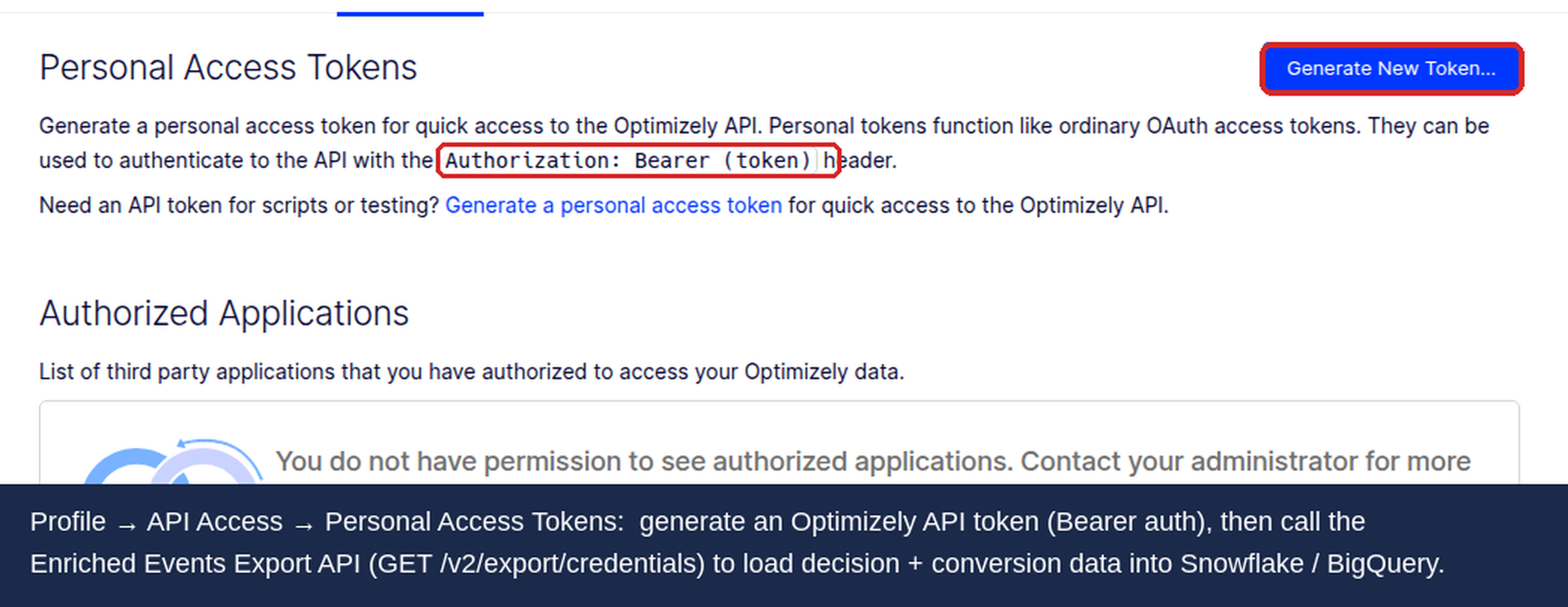
Generate a Personal Access Token in Optimizely and exchange it for S3 credentials using the Authentication API:
# Generate a short-lived S3 access credential
curl -X GET "https://api.optimizely.com/v2/export/credentials?duration=1h" \
  -H "Authorization: Bearer <YOUR_PERSONAL_ACCESS_TOKEN>"
The response returns accessKeyId, secretAccessKey, sessionToken, plus an s3Path. These credentials expire hourly — automate renewal in your ETL pipeline.
S3 bucket structure:
s3://optimizely-events-data/v1/
  account_id=<account_id>/
    type=decisions/
      date=YYYY-MM-DD/
        experiment=<experiment_id>/
          part-*.parquet
    type=events/
      date=YYYY-MM-DD/
        event=<event_name>/
          part-*.parquet
Check for the _SUCCESS file before loading. Each daily partition is complete when this file is present:
s3://optimizely-events-data/v1/account_id=<account_id>/type=decisions/date=YYYY-MM-DD/_SUCCESS
Do not start loading a partition until _SUCCESS exists at that path.
Step 2: Load into Snowflake (via S3 Stage)
If you cannot use Secure Data Sharing (wrong region, need write access, or need to transform data during load), use an external stage:
CREATE OR REPLACE STAGE optimizely_events_stage
  URL = 's3://optimizely-events-data/v1/account_id=<YOUR_ACCOUNT_ID>/'
  CREDENTIALS = (
    AWS_KEY_ID      = '<ACCESS_KEY_ID>'
    AWS_SECRET_KEY  = '<SECRET_ACCESS_KEY>'
    AWS_TOKEN       = '<SESSION_TOKEN>'
  )
  FILE_FORMAT = (
    TYPE            = 'PARQUET'
    SNAPPY_COMPRESSION = TRUE
  );
CREATE TABLE IF NOT EXISTS optimizely_decisions (
  uuid              VARCHAR,
  timestamp         BIGINT,
  process_timestamp BIGINT,
  visitor_id        VARCHAR,
  account_id        VARCHAR,
  campaign_id       VARCHAR,
  experiment_id     VARCHAR,
  variation_id      VARCHAR,
  is_holdback       BOOLEAN,
  user_agent        VARCHAR,
  attributes        VARIANT
);
COPY INTO optimizely_decisions
FROM @optimizely_events_stage/type=decisions/date=2024-03-15/
FILE_FORMAT = (TYPE = 'PARQUET')
MATCH_BY_COLUMN_NAME = CASE_INSENSITIVE;
For continuous loading, set up Snowpipe with AUTO_INGEST = TRUE and coordinate with Optimizely support to add your SNS or SQS ARN as an S3 event destination.
Step 3: Load into BigQuery
BigQuery does not read S3 directly. Transfer the Parquet files to Google Cloud Storage first, then load into BigQuery.
# Transfer from S3 to GCS
aws s3 sync \
  s3://optimizely-events-data/v1/account_id=<ACCOUNT_ID>/type=decisions/date=2024-03-15/ \
  /tmp/optimizely_decisions/

gsutil -m cp -r /tmp/optimizely_decisions/ \
  gs://<YOUR_GCS_BUCKET>/optimizely/decisions/date=2024-03-15/
Automate this with Cloud Scheduler + Cloud Functions, or use BigQuery Data Transfer Service with an S3 source to pull directly.
CREATE TABLE IF NOT EXISTS `your_project.optimizely.decisions` (
  uuid              STRING,
  timestamp         INT64,
  process_timestamp INT64,
  visitor_id        STRING,
  account_id        STRING,
  campaign_id       STRING,
  experiment_id     STRING,
  variation_id      STRING,
  is_holdback       BOOL,
  user_agent        STRING,
  attributes        JSON
)
PARTITION BY DATE(TIMESTAMP_MILLIS(timestamp));
bq load \
  --source_format=PARQUET \
  --replace=false \
  your_project:optimizely.decisions \
  "gs://<YOUR_GCS_BUCKET>/optimizely/decisions/date=2024-03-15/*.parquet"
Or use the BigQuery UI: Create table > Google Cloud Storage > File format: Parquet.
Alternatively, use Fivetran — Optimizely offers an official Fivetran connector that syncs Experimentation Events Export data into any supported warehouse (Snowflake, BigQuery, Redshift) with zero custom code.
Approach C: Warehouse-Native Experimentation Analytics
Warehouse-Native Analytics connects Optimizely directly to your existing warehouse. Instead of moving data out, Optimizely queries your warehouse when you view results. Your business metrics stay in your warehouse — Optimizely reads them.
Step 1: Connect Your Warehouse
Email
[email protected]with your Optimizely account ID to provision access to the Analytics app.In the Analytics app, go to Data > Connection > New Connection.
Select Snowflake or BigQuery.
For Snowflake, provide:
Account identifier (e.g.,
orgname-accountname)Warehouse name
Database and schema
Service account username and password (or key pair authentication)
For BigQuery, provide:
Project ID
Dataset
Service account JSON key with
roles/bigquery.dataViewerandroles/bigquery.jobUserpermissions
Test the connection before saving.
Step 2: Enable Materialization
Optimizely caches intermediate computations in your warehouse to reduce query cost and latency.
Go to Settings > General Settings > Materialization.
Enable materialization.
Configure:
Database — where materialized tables are created
Schema — schema for those tables
Refresh Cron Schedule — recommended:
0 0 * * *(daily at midnight)
Step 3: Create the Three Required Datasets
Warehouse-Native Analytics requires three linked datasets: decision, actor, and event.
Decision Dataset
The decision dataset tells Optimizely which users were assigned to which experiments. It maps to a table in your warehouse that you populate (via the SDK listener approach in Step 4, or from any existing logging pipeline).
Go to Data > Datasets > + New Dataset > Source Dataset.
Select your decision table.
Under Semantics, select Decision stream.
Map the required fields:
Optimizely Field | Your Column |
|---|---|
Experiment ID | The column containing the Optimizely experiment ID |
Variation | The column containing the variation ID or key |
Timestamp | Decision timestamp (UTC) |
Actor dataset | Link to your user/actor dataset |
Is holdback (optional) | Boolean column for holdback exclusion |
Actor Dataset
The actor dataset represents your users. It joins decisions to events via a shared user identifier.
+ New Dataset > Source Dataset.
Select your user table (e.g.,
usersoruser_events).Under Semantics, select Actor.
Map the actor ID field to your user identifier column.
Event Dataset
The event dataset contains your business metrics — purchases, clicks, conversions, or any other outcome you want to measure.
+ New Dataset > Source Dataset.
Select your events or conversions table.
Under Semantics, select Event stream.
Map: event name, actor ID, timestamp, and any numeric value fields (revenue, etc.).
Link the datasets: decision → actor → event, all joined on the actor ID.
Step 4: Populate Decision Data via SDK Listener
If you don't have an existing decision logging pipeline, add a DECISION notification listener to your SDK initialization to write decisions into your warehouse table.
JavaScript / Node.js:
const { createInstance, enums } = require('@optimizely/optimizely-sdk');

const optimizelyClient = createInstance({ sdkKey: 'YOUR_SDK_KEY' });

optimizelyClient.notificationCenter.addNotificationListener(
  enums.NOTIFICATION_TYPES.DECISION,
  function(decisionData) {
    if (decisionData.decisionInfo.flagKey === null) return;

    const record = {
      experiment_id:   decisionData.decisionInfo.ruleKey,
      experiment_key:  decisionData.decisionInfo.flagKey,
      variation_id:    decisionData.decisionInfo.variationKey,
      user_id:         decisionData.userId,
      attributes:      decisionData.attributes,
      is_holdback:     decisionData.decisionInfo.enabled === false,
      timestamp:       Date.now(),
    };

    // Write to your warehouse table or push to your data pipeline
    writeToWarehouse(record);
  }
);
Python:
import time

from optimizely import optimizely
from optimizely.helpers import enums

client = optimizely.Optimizely(sdk_key='YOUR_SDK_KEY')

def on_decision(decision_type, user_id, attributes, decision_info):
    if decision_info.get('rule_key') is None:
        return

    record = {
        'experiment_id':  decision_info['rule_key'],
        'variation_id':   decision_info['variation_key'],
        'user_id':        user_id,
        'attributes':     attributes,
        'is_holdback':    not decision_info.get('enabled', True),
        'timestamp':      int(time.time() * 1000),
    }

    # Write to your warehouse table or push to your data pipeline
    write_to_warehouse(record)

client.notification_center.add_notification_listener(
    enums.NotificationTypes.DECISION,
    on_decision
)
Push these records to your warehouse via batch inserts, a message queue (Kafka, Pub/Sub), or a streaming insert API.
Analyzing Experiment Data
Once decisions are in your warehouse, standard SQL patterns cover most analysis needs.
Variation Counts and Holdback Check
-- Snowflake / BigQuery compatible
SELECT
  experiment_id,
  variation_id,
  is_holdback,
  COUNT(DISTINCT visitor_id) AS unique_users
FROM optimizely_decisions
WHERE DATE(TIMESTAMP_MILLIS(timestamp)) BETWEEN '2024-03-01' AND '2024-03-31'
  AND experiment_id = '12345678'
GROUP BY 1, 2, 3
ORDER BY 3, 2;
Join Decisions to Conversions
-- Attribute conversions to the experiment variation at decision time
SELECT
  d.experiment_id,
  d.variation_id,
  COUNT(DISTINCT d.visitor_id)                       AS assigned_users,
  COUNT(DISTINCT e.visitor_id)                       AS converted_users,
  COUNT(DISTINCT e.visitor_id) * 1.0
    / NULLIF(COUNT(DISTINCT d.visitor_id), 0)        AS conversion_rate
FROM optimizely_decisions d
LEFT JOIN optimizely_events e
  ON  d.visitor_id  = e.visitor_id
  AND e.event_name  = 'purchase'
  AND e.timestamp   >= d.timestamp   -- conversion must come after decision
WHERE d.experiment_id = '12345678'
  AND d.is_holdback IS DISTINCT FROM TRUE
GROUP BY 1, 2
ORDER BY 2;
Sample Ratio Mismatch Detection
Unequal traffic splits indicate a bucketing problem. A 50/50 experiment should have roughly equal user counts per variation.
WITH variation_counts AS (
  SELECT
    variation_id,
    COUNT(DISTINCT visitor_id) AS n
  FROM optimizely_decisions
  WHERE experiment_id = '12345678'
    AND is_holdback IS DISTINCT FROM TRUE
  GROUP BY 1
),
total AS (
  SELECT SUM(n) AS total_n FROM variation_counts
)
SELECT
  v.variation_id,
  v.n,
  t.total_n,
  ROUND(v.n * 100.0 / t.total_n, 1) AS pct
FROM variation_counts v, total t
ORDER BY v.variation_id;
If any variation deviates from the expected allocation by more than 1%, investigate for mutual exclusion issues, caching, or bot traffic.
Revenue Impact per Variation
SELECT
  d.variation_id,
  COUNT(DISTINCT d.visitor_id)          AS users,
  SUM(e.revenue)                        AS total_revenue,
  AVG(e.revenue)                        AS avg_revenue_per_converter,
  SUM(e.revenue) / COUNT(DISTINCT d.visitor_id)  AS revenue_per_user
FROM optimizely_decisions d
LEFT JOIN optimizely_events e
  ON  d.visitor_id = e.visitor_id
  AND e.event_name = 'purchase'
  AND e.timestamp  >= d.timestamp
WHERE d.experiment_id = '12345678'
  AND d.is_holdback IS DISTINCT FROM TRUE
GROUP BY 1
ORDER BY 1;
Gotchas
Daily Export Lag
The Experimentation Events Export is available approximately 24 hours after events occur, usually by 13:00 UTC. The export does not support real-time or near-real-time analysis. If you need same-day data, use the SDK notification listener to write decisions directly to your warehouse.
KMS Decryption Requirement
The S3 export is encrypted with AWS-KMS. Your AWS client must have the kms:Decrypt permission for the Optimizely-managed KMS key. The credentials returned by the Authentication API include the required session token — use them as-is with the AWS CLI or SDK.
EU Data Server Customers
The Experimentation Events Export is not available for Optimizely accounts on the EU data server. Warehouse-Native Analytics remains an option, but the S3-based export approach does not apply.
Credential Rotation
S3 export credentials expire periodically. Your ETL job must refresh them by calling the Authentication API before each load run. Storing and reusing expired credentials causes silent permission errors when accessing the S3 bucket.
Holdback Exclusion
Always filter out holdback users (is_holdback = true) before computing experiment metrics. Holdback users are assigned to a campaign but are intentionally excluded from variations — including them inflates the control group and skews conversion rates.
Decision Deduplication
The same user may generate multiple decision events for the same experiment (repeated page loads, re-initialization). Deduplicate by uuid (Approach A) or by visitor_id + experiment_id keeping the earliest timestamp before computing unique user counts.
Warehouse-Native Analytics Requires Support Provisioning
The Warehouse-Native Analytics app is not self-serve. You must contact [email protected] to have your account ID provisioned before the connection UI is accessible. Factor this into your setup timeline.
Troubleshooting
S3 Access Denied Errors
If aws s3 ls returns an access denied error:
Verify the
AWS_TOKEN(session token) is included in the request — the credentials use temporary STS tokens, not long-lived IAM keys.Confirm the credentials were generated within the last hour. Refresh them via the Authentication API if expired.
Ensure your AWS CLI version is 1.11.108 or later.
_SUCCESS File Not Present
If the _SUCCESS file is missing for today's partition, data for that day is not yet available. The export runs on a daily schedule — check again after 13:00 UTC. Do not load partial data from a partition without the _SUCCESS file.
Snowflake COPY INTO Matches Zero Rows
If the COPY INTO command completes but inserts no rows:
Confirm the stage path matches the S3 partition structure:
type=decisions/date=YYYY-MM-DD/.Run
LIST @optimizely_events_stage/type=decisions/date=YYYY-MM-DD/to verify the stage can see the files.Check that
MATCH_BY_COLUMN_NAME = CASE_INSENSITIVEis set — Parquet column names are case-sensitive by default.
BigQuery Load Fails with Schema Mismatch
The attributes field in the Parquet export is a nested structure. If BigQuery infers the schema incorrectly:
Use
--autodetectflag during the first load to let BigQuery infer schema from Parquet metadata.After the first load, inspect the schema and create an explicit schema file for subsequent loads to prevent drift.
Warehouse-Native Analytics Shows No Experiments
If no experiments appear in the Analytics results UI after creating datasets:
Confirm the decision dataset Semantics is set to Decision stream (not Event stream or Actor).
Verify that the Experiment ID field is mapped to a column that contains Optimizely's numeric experiment ID — not the experiment name or rule key.
Check that the linked actor dataset shares at least one row's actor ID with the decision dataset.
Related guides
Independent experimentation specialist
David Sertillange is an independent experimentation specialist with 10 years implementing Optimizely across enterprise programs. He specializes in Feature Experimentation, analytics integrations, and helping teams build a culture of data-driven decision making.
Related articles
Subscribe
Practical Optimizely tips, monthly. No fluff.