

Optimizely GA4 Integration: Track Experiments in Google Analytics 4
 David SertillangeIndependent experimentation specialist
TL;DR
Integrate Optimizely Web Experimentation with Google Analytics 4 (GA4) to analyze client-side experiment performance, create audiences from experiment variations, and leverage GA4 reporting capabilities.
Overview
The GA4 + Web Experimentation integration enables you to:
Track visitor experiment assignments automatically in GA4
Export variations as audiences to GA4 for remarketing and analysis
Build custom reports comparing variation performance
Segment all GA4 data by experiment and variation
How It Works
The sequence diagram below shows the flow of experiment data from the Optimizely snippet to Google Analytics 4:
sequenceDiagram
    participant Browser as User Browser
    participant Snippet as Optimizely Snippet
    participant GA4 as GA4 gtag.js
    participant Server as GA4 Server

    Browser->>Snippet: Page loads
    Snippet->>Snippet: Activate experiment
    Snippet->>GA4: Set experiment_id dimension
    Note over GA4: exp.EXPERIMENT_ID VARIANT_ID
    Browser->>GA4: Track page view / events
    GA4->>Server: Send hits with experiment data
    Server->>Server: Segment by experiment
    Note over Server: Reports show experiment breakdown
Prerequisites
An active Optimizely Web Experimentation account
A GA4 property with the Google tag configured
Optimizely snippet installed on your website
Project Owner role in Optimizely
Editor role in GA4 property
Method 1: Built-In Integration (Recommended)
The simplest way to integrate - enable in Optimizely settings.
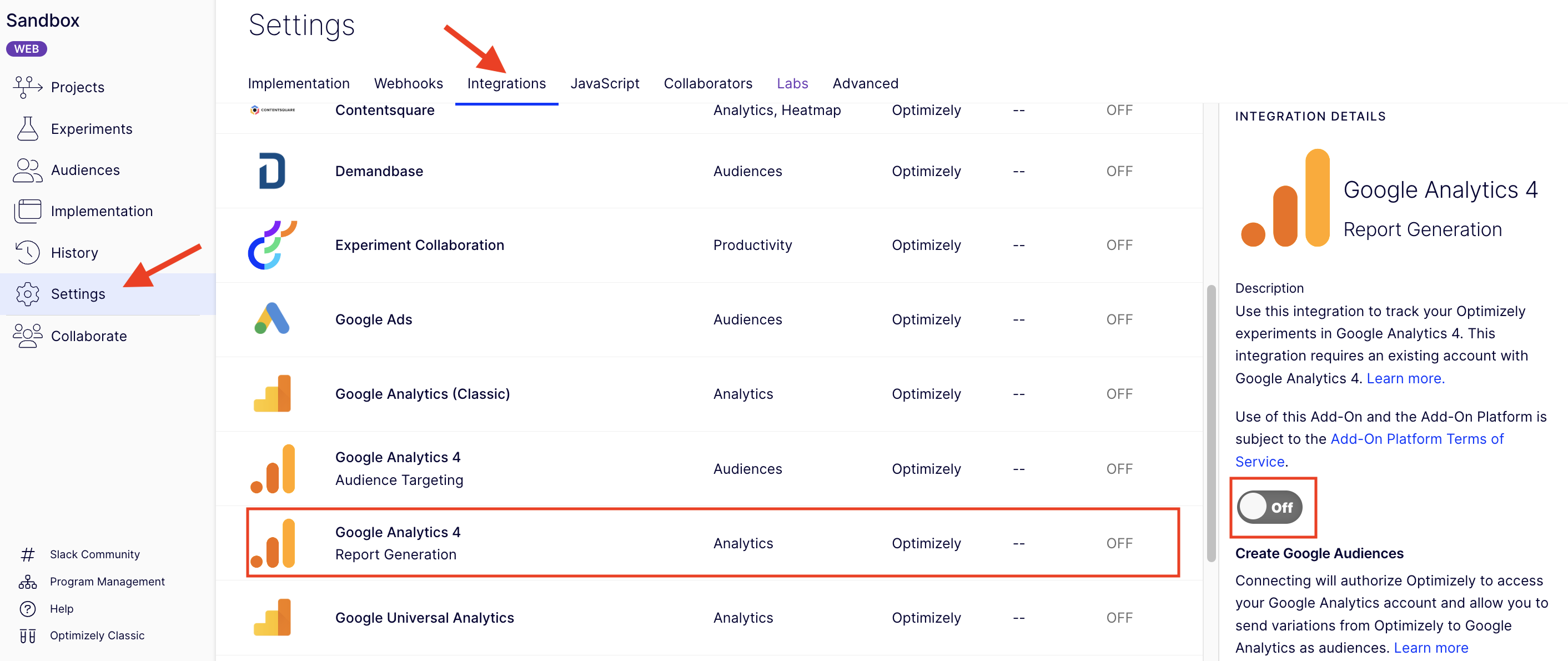
Step 1: Enable GA4 Integration
Log into Optimizely Web Experimentation
Navigate to Settings → Integrations
Find Google Analytics 4 - Report Generation
Toggle the integration ON
Click Accept
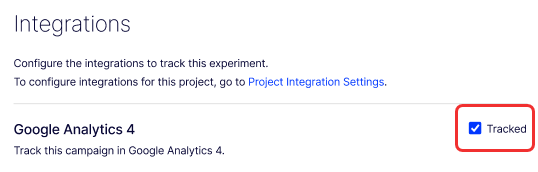
Step 2: Add to Experiments
Open an experiment in Optimizely
Go to the Integrations tab
Check the Tracked box next to Google Analytics 4
Click Save
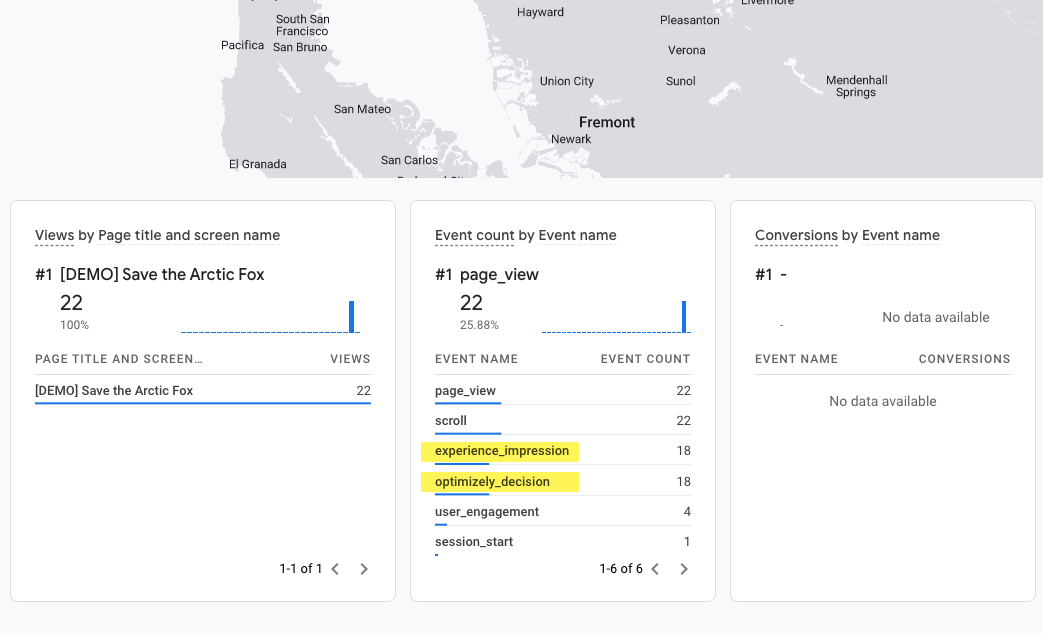
Step 3: Verify Events in GA4
Navigate to your website and enter an experiment
In GA4, go to Reports → Realtime
Within 30 seconds, you should see
experience_impressionevents
Report Generation Feature
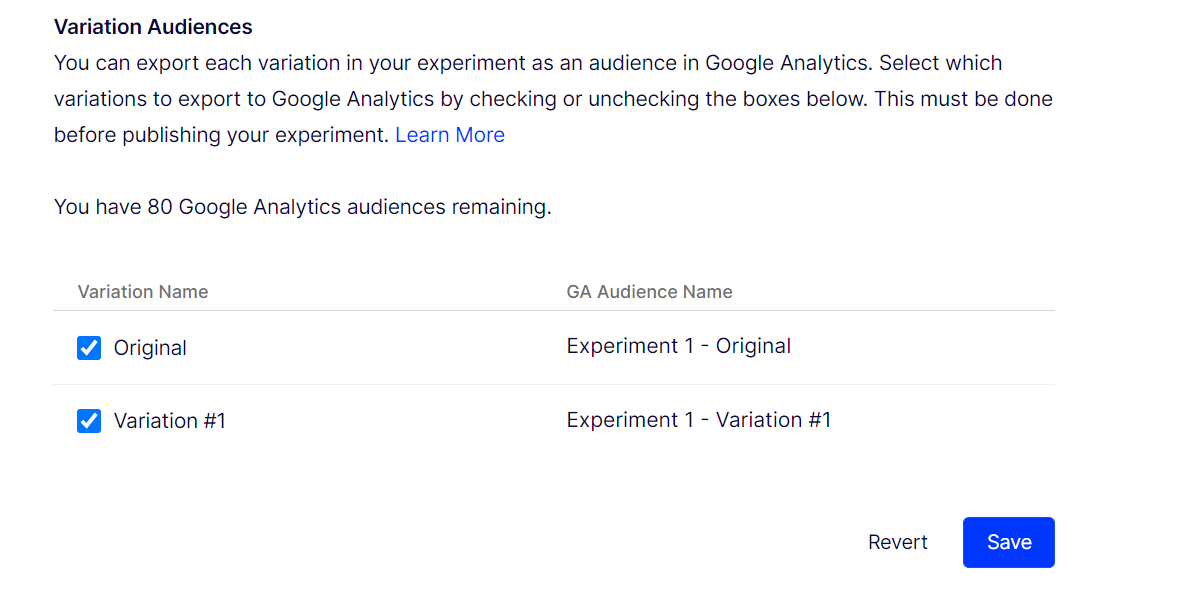
Report Generation automatically creates GA4 audiences for each variation, eliminating the need to manually create custom dimensions and segments.
Configure Report Generation
In your experiment, click the Integrations tab
Click Configure Report Generation
Select your GA4 property from the dropdown
Choose which variations to export as audiences
Click Send Variations to GA4
Optimizely will automatically:
Create GA4 audiences for each variation
Populate audiences with users who saw each variation
Update audiences daily as new users enter the experiment
Method 2: Google Tag Manager Integration
For advanced users who need custom logic or conditional tracking.
Create GTM Variables
Create two data layer variables in GTM:
exp_variant_string → Data Layer Variable Name:
exp_variant_stringHoldback → Data Layer Variable Name:
Holdback
Create GA4 Event Tag
Tag Type: Google Analytics: GA4 Event
Event Name:
experience_impressionEvent Parameters:
exp_variant_string→{{exp_variant_string}}Holdback→{{Holdback}}
Trigger: Custom Event →
experience_impression
Event Parameters Explained
The experience_impression event includes:
exp_variant_string
Format:[Experiment ID]-[Variation ID]
Example:28475839201-28491038274
Holdback
Values:true or false
false: User is IN the experimenttrue: User is in the holdback group
Common Use Cases
Funnel Analysis by Variation
Compare checkout funnel completion rates between variations:
GA4 → Explore → Funnel exploration
Define steps:
experience_impression→begin_checkout→purchaseBreakdown by custom dimension or use segments
Revenue Attribution
Calculate incremental revenue from winning variation:
Use Report Generation to create audiences
GA4 → Monetization → Overview
Apply audience filters to compare revenue
Troubleshooting
Events Not Appearing
Check:
Integration enabled in Optimizely Settings
Experiment marked as Tracked
Experiment is Running (not Paused)
GA4 tag loaded on page
Visitor qualifies for experiment
GTM Integration Issues
Verify:
Variables have correct names (case-sensitive)
Trigger listens for
experience_impressionGTM container is published
Event fires in GTM Preview mode
Next Steps
Verify events in GA4 Realtime reports
Wait 24-48 hours for custom dimensions
Create user segments in GA4 Explorations
Build custom reports comparing variations
Export to BigQuery for advanced analysis
For full GTM configuration details, see the Optimizely documentation on integrating GA4 with Google Tag Manager.
Related guides
Independent experimentation specialist
David Sertillange is an independent experimentation specialist with 10 years implementing Optimizely across enterprise programs. He specializes in Feature Experimentation, analytics integrations, and helping teams build a culture of data-driven decision making.
Related articles
Subscribe
Practical Optimizely tips, monthly. No fluff.